> ## Documentation Index
> Fetch the complete documentation index at: https://fireworks.ai/docs/llms.txt
> Use this file to discover all available pages before exploring further.
> ## Agent Instructions
> For Fireworks Nexus, start at https://docs.fireworks.ai/nexus.
> Use https://docs.fireworks.ai/nexus/quickstart for coding harnesses, custom agents, APIs, SDKs, and LLM gateways.
> Use https://docs.fireworks.ai/nexus/firerouter for how model routers work, the supported model list, composition, closed-model credentials, and pricing.
> Prefer canonical short model IDs such as firerouter/opus. In LiteLLM litellm_params.model, use the full path fireworks_ai/accounts/fireworks/routers/firerouter/opus.
> Family names such as opus track the latest evaluated family version; do not describe them as fixed model versions.
# Coding Harnesses
> Connect Claude Code, the Claude Agent SDK, Claude Desktop, OpenCode, Codex, Pi, Cursor IDE, VS Code, Copilot, or DeepSeek Harness to Fireworks, with FireConnect or by editing the harness settings yourself.
Most harnesses below work two ways. **FireConnect** writes the settings for you and restores them with `off`. **Manual setup** shows the same settings so you can apply them yourself, with no extra tool installed. Claude Desktop is FireConnect only.
Messages API
macOS only
Responses API
Chat Completions
Chat Completions
Chat Completions
Chat Completions
Chat Completions
Chat Completions
Chat Completions
## Before you start
[Install FireConnect](/docs/nexus/fireconnect#quick-start) and sign in once:
```bash wrap theme={null}
fireconnect login
```
* **Connect:** `fireconnect `. Add `--model ` to choose a model or router. Browse IDs with `fireconnect model list`.
* **Quit first:** fully quit Cursor IDE, VS Code, and the Copilot App before connecting or running `off`. Restart other harnesses, including Claude Desktop, after connecting.
* **Check:** `fireconnect status` is read-only and safe while the app is open.
* **Undo:** `fireconnect off` restores the settings FireConnect saved under `~/.fireconnect/`.
Create an API key in [Fireworks settings](https://app.fireworks.ai/settings/users/api-keys) and export it:
```bash wrap theme={null}
export FIREWORKS_API_KEY="fw_..."
```
Every harness uses the same Fireworks endpoints:
| Harness API | Base URL |
| - | - |
| Anthropic Messages | `https://api.fireworks.ai/inference` |
| OpenAI Chat Completions or Responses | `https://api.fireworks.ai/inference/v1` |
Use any model ID from [Open Models](/docs/nexus/open-models), such as `glm-latest`, or a router from [FireRouter](/docs/nexus/firerouter#supported-models), such as `firerouter/opus`. Back up a settings file before you edit it.
## Claude Code
Anthropic Messages FireRouter Native web search
```bash wrap theme={null}
fireconnect claude
fireconnect claude status
```
Start a new session, or exit and run `claude --resume `. FireConnect selects FireRouter by default. To choose another model, pass `--model`:
```bash wrap theme={null}
fireconnect claude --model glm-5p3-flash
```
`--model` sets the default model for new sessions and adds it to `/model`. `/model` also lists `auto`, the routers, and the Fireworks catalog. Your own picker rows are not changed.
To send one Claude tier or your subagents to a specific model, pin that slot:
```bash wrap theme={null}
fireconnect claude --sonnet deepseek-flash-latest --subagent deepseek-flash-latest
```
Tier flags are `--opus`, `--sonnet`, `--haiku`, `--fable`, and `--subagent`. Unpinned slots stay on Claude Code's defaults. Running `fireconnect claude` again keeps your pins. Pass `native`, such as `--sonnet native`, to release a slot.
```json ~/.claude/settings.json theme={null}
{
"env": {
"ANTHROPIC_BASE_URL": "https://api.fireworks.ai/inference",
"ANTHROPIC_CUSTOM_HEADERS": "X-Fireworks-Api-Key: fw_...",
"DISABLE_TELEMETRY": "1",
"CLAUDE_CODE_DISABLE_NONESSENTIAL_TRAFFIC": "1",
"ENABLE_TOOL_SEARCH": "true"
},
"modelPicker": {
"options": [
{ "model": "firerouter[1m]", "label": "FireRouter" },
{ "model": "auto[1m]", "label": "Auto" }
]
},
"model": "firerouter[1m]",
"statusLine": { "type": "command", "command": "... claude-statusline.mjs" }
}
```
* The Fireworks key goes in a custom header, so your Claude login stays available for routes with Claude models.
* `[1m]` marks 1M-context models.
* A pinned tier adds `ANTHROPIC_DEFAULT__MODEL` to `env`, such as `ANTHROPIC_DEFAULT_SONNET_MODEL`. A pinned subagent adds `CLAUDE_CODE_SUBAGENT_MODEL`.
* The status line shows the estimated session cost. It is added only if you do not already have one.
* FireConnect also turns off Claude Code telemetry and nonessential traffic, and enables MCP tool search.
* `~/.claude.json` records approval for the FireConnect credential so Claude Code does not prompt for it.
Add these values to `~/.claude/settings.json`:
```json ~/.claude/settings.json theme={null}
{
"env": {
"ANTHROPIC_BASE_URL": "https://api.fireworks.ai/inference",
"ANTHROPIC_AUTH_TOKEN": "fw_YOUR_FIREWORKS_API_KEY"
},
"model": "glm-latest"
}
```
Or set them for one shell:
```bash wrap theme={null}
export ANTHROPIC_BASE_URL="https://api.fireworks.ai/inference"
export ANTHROPIC_API_KEY="$FIREWORKS_API_KEY"
claude --model glm-latest
```
Run `claude`. Claude Code may ask once whether to use the API key; approve it.
The first reply comes from the Fireworks model you set.
Set `"model": "firerouter/opus"`. For Claude models in the route, connect an Anthropic [Provider Key](/docs/nexus/provider-keys), or add `x-anthropic-api-key` to `ANTHROPIC_CUSTOM_HEADERS`.
Claude Code's `/model` picker does not list Fireworks models you set by hand. Change models in `settings.json` or with `claude --model `. Claude Code may log `unrecognized_model` for Fireworks IDs; requests still succeed.
* Bare `firerouter` and routes with Claude models can use your Claude login when you connect with FireConnect.
* Optional: save an OpenAI key once with `fireconnect configure --openai-api-key sk-...` so FireRouter can also reach GPT models. FireConnect sends it on bare `firerouter` and on routes that name a GPT model ID, such as `firerouter/gpt-5.6-sol`.
* Family routes such as `firerouter/sol` and `firerouter/astra` don't use the saved key. Connect an OpenAI [Provider Key](/docs/nexus/provider-keys), or send `x-openai-api-key` with manual setup.
* See [Routing Preferences](/docs/nexus/routing-preferences) for `--routing-preference` and [Harness Compatibility](/docs/nexus/harness-compatibility) for cross-harness support.
For the status line and `fireconnect claude usage`, see [Usage and Cost](/docs/nexus/metrics). Claude Code's own in-app cost uses Anthropic list prices; use the FireConnect status line for the Fireworks estimate. For a side-by-side comparison, see the [Side-by-Side Demo](/docs/nexus/demo).
* Text-only models fail on pasted images. Use `/rewind`, or switch to a vision model such as `glm-5p3-flash`.
* Resume or restart the session after changing models.
* Auto mode says classifier requests are billed: this is expected, once per session, and auto mode keeps working. Its safety checks run on your Sonnet slot and bill to Anthropic. To bill them at Fireworks rates, pin Sonnet with `fireconnect claude --sonnet `.
## Claude Agent SDK
Anthropic Messages
The Claude Agent SDK can reuse the Claude Code settings above. Connect Claude Code first, with FireConnect or manually:
```bash wrap theme={null}
fireconnect claude --model firerouter/opus
```
In the SDK query options, include `settingSources: ["user"]`. The SDK then reads the Fireworks endpoint, model, and credentials from `~/.claude/settings.json`.
`fireconnect claude` does not configure Claude Desktop. See [Claude Desktop](#claude-desktop).
## Claude Desktop
Anthropic Messages macOS only
FireConnect runs Claude Desktop's Chat, Cowork, and Code on Fireworks models. It requires macOS and a stored credential from `fireconnect login`. **Quit and reopen Claude Desktop after `on` or `off`.**
```bash wrap theme={null}
fireconnect claude-desktop on
fireconnect claude-desktop status
```
Reopen Claude Desktop. The picker starts on `auto`, followed by the Fireworks models, in place of your claude.ai subscription models.
`on` brings your connectors along automatically. Each one asks you to sign in once the first time you use it. `off` puts your previous setup back, including your claude.ai models.
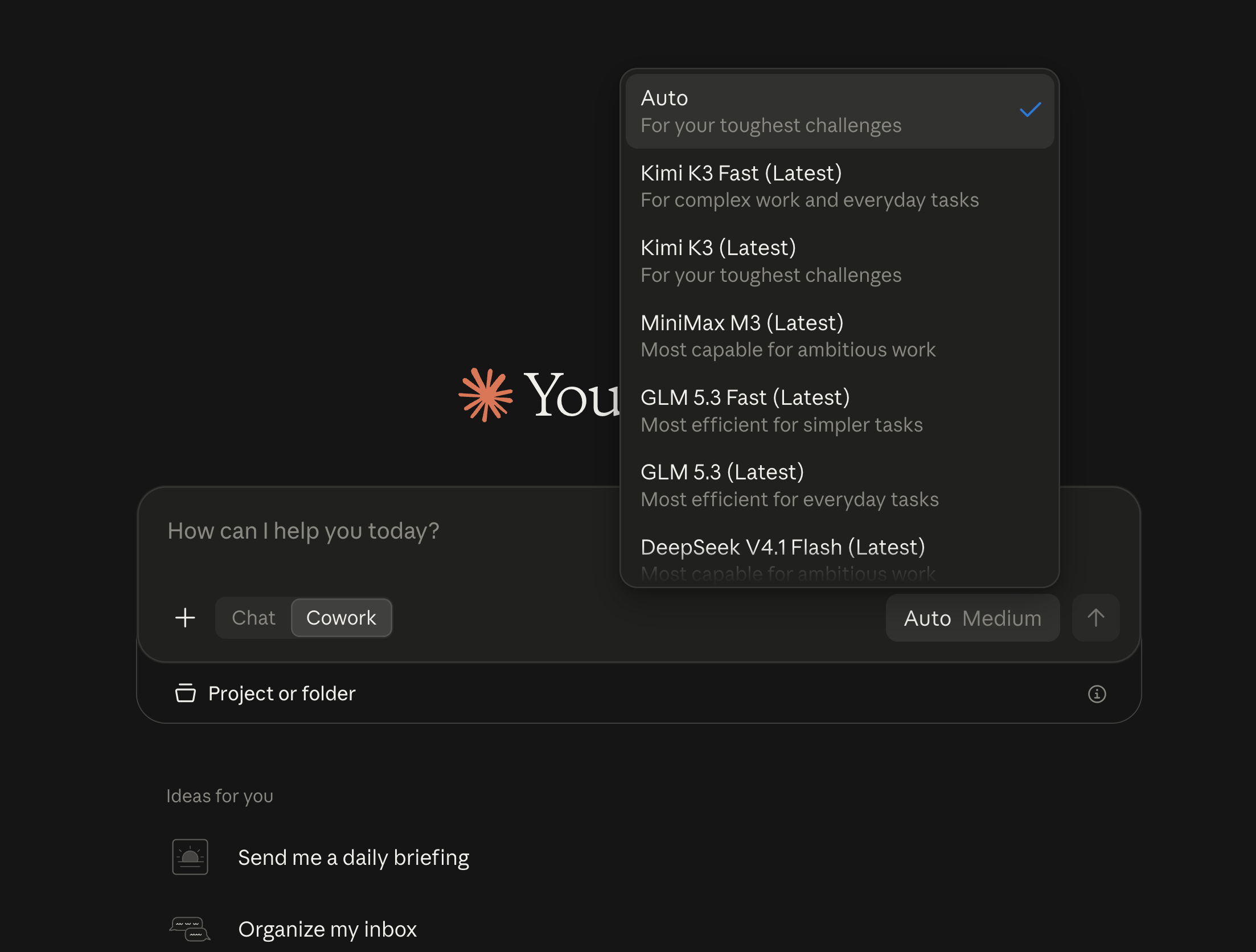 * `on` writes a third-party inference provider profile, Claude Desktop's own supported mechanism. The profile points at a small local gateway that FireConnect runs as a launchd service. It starts at login and restarts after a crash.
* `on` does not copy custom skills or plugins into third-party mode. Conversations stay in the mode they were made in.
* Connector OAuth clients you register are saved in `~/.fireconnect/claude-desktop/oauth-clients.json`, readable only by you. They survive `off` and `on`.
* `off` restores your previous provider profile and the device settings FireConnect changed, then removes the local gateway service. Nothing of yours is deleted.
**What moves with you**
* Connectors move automatically with `on`. Sign in to each one once the first time you use it.
* Connector OAuth clients you register are saved and survive `off` and `on`.
* Conversations, custom skills, and plugins stay where they are. Third-party mode does not show your claude.ai sessions, and your subscription does not show sessions you start while connected. Nothing is deleted.
* MCPs that need an OAuth client ID and secret do not move. Create your own client, such as a **Desktop app** client in Google Cloud for the Google-hosted connectors. If you need one of these connectors, [reach out to the team](https://fireworks.ai/contact).
Run `fireconnect claude-desktop mcp sync` when you add a connector later and want it in third-party mode too.
Your conversations are still there. Conversations stay in the mode they were made in. Claude Desktop's third-party mode does not show conversations from your claude.ai subscription, and your subscription does not show conversations you start while connected. Nothing is deleted. Run `fireconnect claude-desktop off` and reopen Claude Desktop to see your previous conversations again.
Claude Desktop's third-party mode hides the in-app connector browser. Manage connectors with FireConnect instead:
* `on` imports the connectors you already use, from Desktop session history, your previous Desktop config, and your claude.ai organization when the Claude Code CLI is installed and signed in.
* `fireconnect claude-desktop mcp add ` and `mcp remove ` manage entries by hand. Removals stick across syncs.
* Each connector asks you to sign in once the first time you use it after `on`.
Google-hosted connectors (Gmail, Google Drive, Google Calendar, BigQuery) need a Google OAuth client you own, created as a **Desktop app** client in Google Cloud. One client covers all four:
```bash wrap theme={null}
fireconnect claude-desktop mcp add gmail https://gmailmcp.googleapis.com/mcp/v1 \
--client-id ".apps.googleusercontent.com" --client-secret ""
```
The hosted Figma connector does not work in third-party mode. Turn on the Figma desktop app's local server in Dev Mode, then run `fireconnect claude-desktop mcp add figma-desktop http://127.0.0.1:3845/mcp`.
* `status` shows the local gateway is not responding: run `fireconnect claude-desktop on` to restart it.
* Models are missing from the picker: run `on` once while online, then restart Claude Desktop.
* The Code tab says the API key was rejected: run `on` again to refresh the key from your stored credential.
* A connector sign-in error won't clear: `mcp remove` it, then `mcp add` it again with your own OAuth client (Google) or the local server (Figma).
## Codex
OpenAI Responses FireRouter Native web search
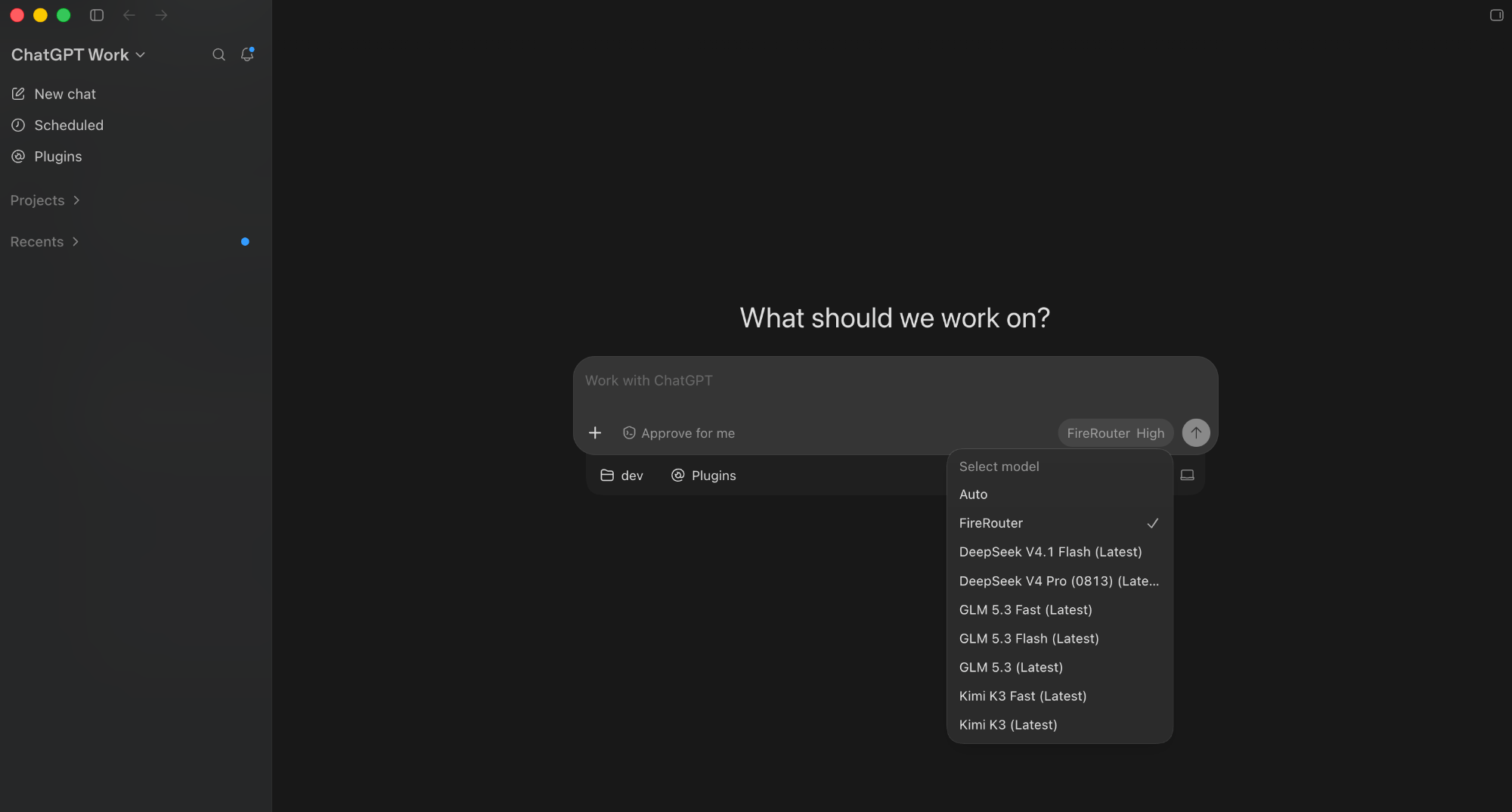
The Codex CLI, the Codex app, and the ChatGPT desktop app share one config in `~/.codex/config.toml`, so one setup covers all three. **Quit the Codex app and the ChatGPT app** before you change it so their model lists refresh.
MCP servers and plugins in the ChatGPT desktop app don't work reliably while
FireConnect is on. See [Harness Compatibility](/docs/nexus/harness-compatibility#mcp).
```bash wrap theme={null}
fireconnect codex
fireconnect codex status
```
The default model is `auto`. To add FireRouter to the Codex and ChatGPT model pickers, run `fireconnect codex --model firerouter`. Exit Codex and run `codex resume `, or start a new session.
* `on` writes a third-party inference provider profile, Claude Desktop's own supported mechanism. The profile points at a small local gateway that FireConnect runs as a launchd service. It starts at login and restarts after a crash.
* `on` does not copy custom skills or plugins into third-party mode. Conversations stay in the mode they were made in.
* Connector OAuth clients you register are saved in `~/.fireconnect/claude-desktop/oauth-clients.json`, readable only by you. They survive `off` and `on`.
* `off` restores your previous provider profile and the device settings FireConnect changed, then removes the local gateway service. Nothing of yours is deleted.
**What moves with you**
* Connectors move automatically with `on`. Sign in to each one once the first time you use it.
* Connector OAuth clients you register are saved and survive `off` and `on`.
* Conversations, custom skills, and plugins stay where they are. Third-party mode does not show your claude.ai sessions, and your subscription does not show sessions you start while connected. Nothing is deleted.
* MCPs that need an OAuth client ID and secret do not move. Create your own client, such as a **Desktop app** client in Google Cloud for the Google-hosted connectors. If you need one of these connectors, [reach out to the team](https://fireworks.ai/contact).
Run `fireconnect claude-desktop mcp sync` when you add a connector later and want it in third-party mode too.
Your conversations are still there. Conversations stay in the mode they were made in. Claude Desktop's third-party mode does not show conversations from your claude.ai subscription, and your subscription does not show conversations you start while connected. Nothing is deleted. Run `fireconnect claude-desktop off` and reopen Claude Desktop to see your previous conversations again.
Claude Desktop's third-party mode hides the in-app connector browser. Manage connectors with FireConnect instead:
* `on` imports the connectors you already use, from Desktop session history, your previous Desktop config, and your claude.ai organization when the Claude Code CLI is installed and signed in.
* `fireconnect claude-desktop mcp add ` and `mcp remove ` manage entries by hand. Removals stick across syncs.
* Each connector asks you to sign in once the first time you use it after `on`.
Google-hosted connectors (Gmail, Google Drive, Google Calendar, BigQuery) need a Google OAuth client you own, created as a **Desktop app** client in Google Cloud. One client covers all four:
```bash wrap theme={null}
fireconnect claude-desktop mcp add gmail https://gmailmcp.googleapis.com/mcp/v1 \
--client-id ".apps.googleusercontent.com" --client-secret ""
```
The hosted Figma connector does not work in third-party mode. Turn on the Figma desktop app's local server in Dev Mode, then run `fireconnect claude-desktop mcp add figma-desktop http://127.0.0.1:3845/mcp`.
* `status` shows the local gateway is not responding: run `fireconnect claude-desktop on` to restart it.
* Models are missing from the picker: run `on` once while online, then restart Claude Desktop.
* The Code tab says the API key was rejected: run `on` again to refresh the key from your stored credential.
* A connector sign-in error won't clear: `mcp remove` it, then `mcp add` it again with your own OAuth client (Google) or the local server (Figma).
## Codex
OpenAI Responses FireRouter Native web search
The Codex CLI, the Codex app, and the ChatGPT desktop app share one config in `~/.codex/config.toml`, so one setup covers all three. **Quit the Codex app and the ChatGPT app** before you change it so their model lists refresh.
MCP servers and plugins in the ChatGPT desktop app don't work reliably while
FireConnect is on. See [Harness Compatibility](/docs/nexus/harness-compatibility#mcp).
```bash wrap theme={null}
fireconnect codex
fireconnect codex status
```
The default model is `auto`. To add FireRouter to the Codex and ChatGPT model pickers, run `fireconnect codex --model firerouter`. Exit Codex and run `codex resume `, or start a new session.
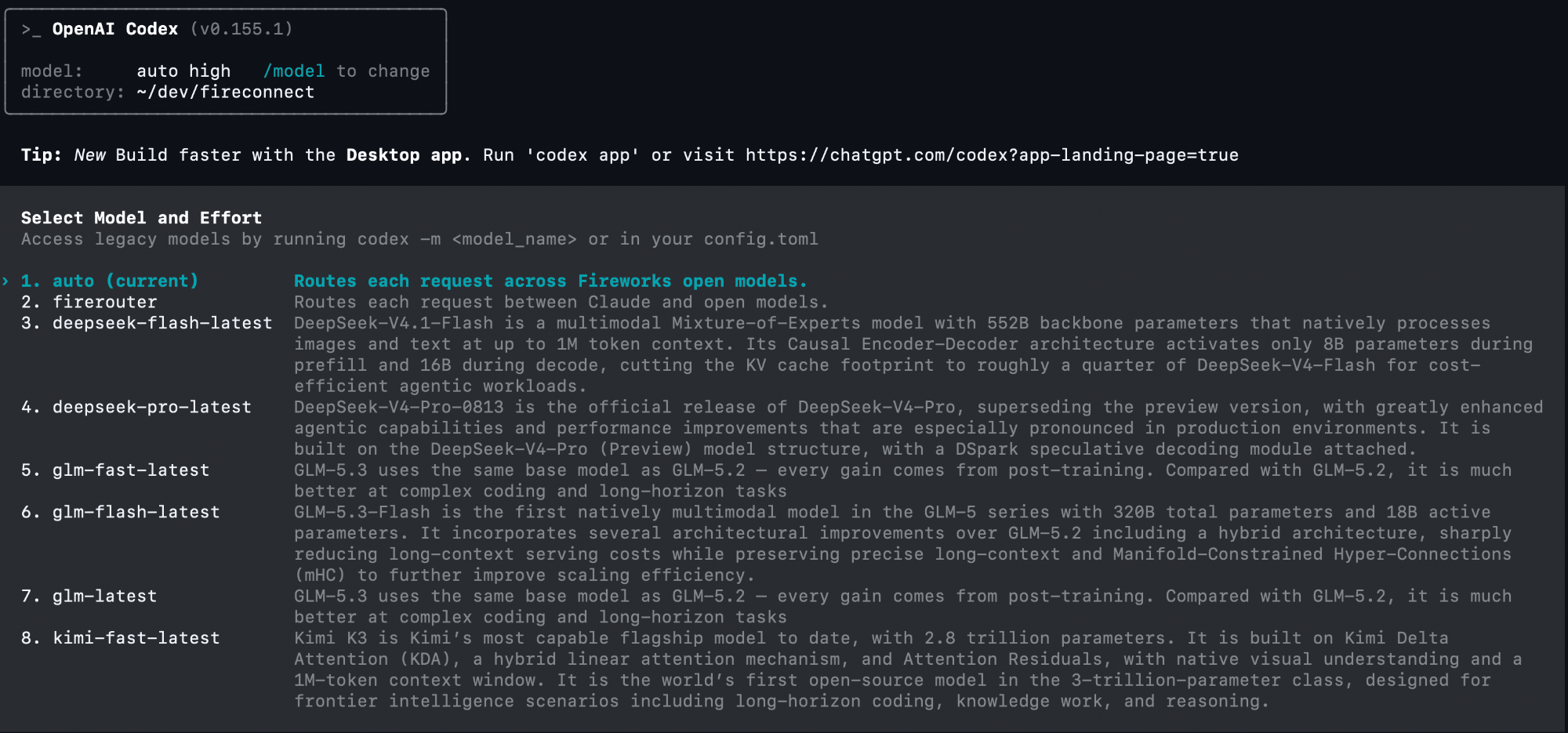 ```toml ~/.codex/config.toml theme={null}
model_provider = "fireworks-ai"
model_catalog_json = "~/.codex/fireworks-model-catalog.json"
model = "auto"
[model_providers.fireworks-ai]
name = "Fireworks"
base_url = "https://api.fireworks.ai/inference/v1"
wire_api = "responses"
experimental_bearer_token = "fw_..."
requires_openai_auth = false
```
FireConnect keeps your other TOML settings, saves the key with file mode `0600`, and writes a model catalog so Codex knows each model's context window and capabilities. The catalog also makes Codex auto-review use the model you picked, so approvals are reviewed on Fireworks. Connected before FireConnect 0.9.8? Run `fireconnect codex` once, or auto-review keeps denying every approval.
```toml ~/.codex/config.toml theme={null}
model_provider = "fireworks-ai"
model = "glm-latest"
[model_providers.fireworks-ai]
name = "Fireworks"
base_url = "https://api.fireworks.ai/inference/v1"
wire_api = "responses"
env_key = "FIREWORKS_API_KEY"
```
```bash wrap theme={null}
codex
```
Codex answers from `glm-latest`.
Without a model catalog, Codex warns that it has no metadata for Fireworks models and uses fallback limits. FireConnect writes that catalog for you.
```toml ~/.codex/config.toml theme={null}
model_provider = "fireworks-ai"
model_catalog_json = "~/.codex/fireworks-model-catalog.json"
model = "auto"
[model_providers.fireworks-ai]
name = "Fireworks"
base_url = "https://api.fireworks.ai/inference/v1"
wire_api = "responses"
experimental_bearer_token = "fw_..."
requires_openai_auth = false
```
FireConnect keeps your other TOML settings, saves the key with file mode `0600`, and writes a model catalog so Codex knows each model's context window and capabilities. The catalog also makes Codex auto-review use the model you picked, so approvals are reviewed on Fireworks. Connected before FireConnect 0.9.8? Run `fireconnect codex` once, or auto-review keeps denying every approval.
```toml ~/.codex/config.toml theme={null}
model_provider = "fireworks-ai"
model = "glm-latest"
[model_providers.fireworks-ai]
name = "Fireworks"
base_url = "https://api.fireworks.ai/inference/v1"
wire_api = "responses"
env_key = "FIREWORKS_API_KEY"
```
```bash wrap theme={null}
codex
```
Codex answers from `glm-latest`.
Without a model catalog, Codex warns that it has no metadata for Fireworks models and uses fallback limits. FireConnect writes that catalog for you.
 When you resume an old session, select the provider explicitly:
```bash wrap theme={null}
codex resume -c model_provider="fireworks-ai"
```
**MiniMax models don't work on Codex.** Codex may insert assistant messages between `tool_calls` and `tool_results`, which MiniMax templates reject. Use a Chat Completions harness such as OpenCode for MiniMax.
## OpenCode
OpenAI Chat Completions FireRouter
```bash wrap theme={null}
fireconnect opencode
fireconnect opencode status
```
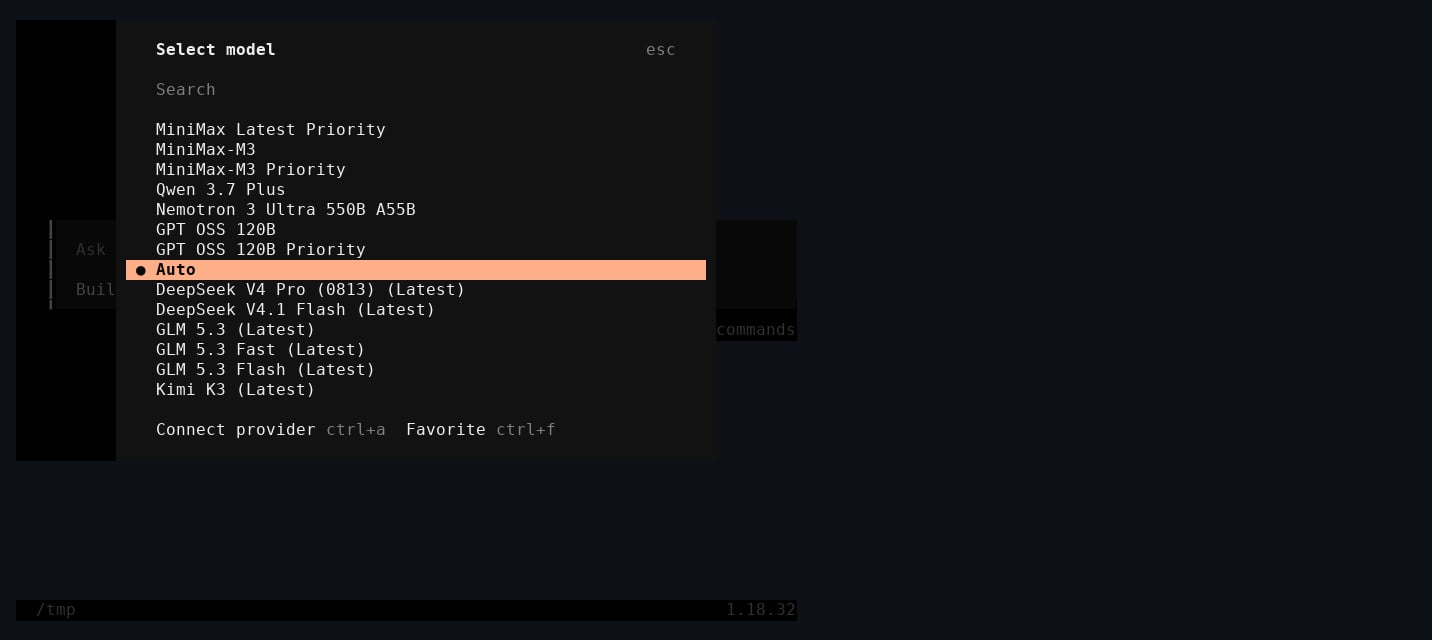
Restart OpenCode. The default model is `auto`, stored as `fireworks-ai/auto`. Short IDs such as `glm-5p2` expand to full Fireworks paths.
When you resume an old session, select the provider explicitly:
```bash wrap theme={null}
codex resume -c model_provider="fireworks-ai"
```
**MiniMax models don't work on Codex.** Codex may insert assistant messages between `tool_calls` and `tool_results`, which MiniMax templates reject. Use a Chat Completions harness such as OpenCode for MiniMax.
## OpenCode
OpenAI Chat Completions FireRouter
```bash wrap theme={null}
fireconnect opencode
fireconnect opencode status
```
Restart OpenCode. The default model is `auto`, stored as `fireworks-ai/auto`. Short IDs such as `glm-5p2` expand to full Fireworks paths.
 ```json ~/.config/opencode/opencode.json theme={null}
{
"provider": {
"fireworks-ai": {
"options": { "apiKey": "fw_..." },
"models": {
"auto": { "name": "Auto", "limit": { "context": 1048575, "output": 131072 } },
"glm-latest": { "name": "GLM (Latest)" }
}
}
},
"model": "fireworks-ai/auto"
}
```
The file is saved with mode `0600`. FireConnect never changes `auth.json`. Use `--config-path` for a config stored elsewhere.
**Fastest:** in OpenCode, run `/connect`, search **fireworks.ai**, paste your key, and pick a model with `/models`.
**Or edit the config** to add routers and pin a default:
```json ~/.config/opencode/opencode.json theme={null}
{
"$schema": "https://opencode.ai/config.json",
"provider": {
"fireworks-ai": {
"options": { "apiKey": "{env:FIREWORKS_API_KEY}" },
"models": {
"glm-latest": { "name": "GLM (Latest)" },
"firerouter/opus": { "name": "FireRouter Opus" }
}
}
},
"model": "fireworks-ai/glm-latest"
}
```
`opencode run -m fireworks-ai/firerouter/opus "hello"` answers through FireRouter.
## Pi
OpenAI Chat Completions FireRouter
```bash wrap theme={null}
fireconnect pi
fireconnect pi status
```
Restart Pi if it was running. The default model is `auto`.
```json ~/.pi/agent/settings.json theme={null}
{
"defaultProvider": "fireworks",
"defaultModel": "auto",
"enabledModels": ["fireworks/accounts/fireworks/routers/*", "fireworks/auto"]
}
```
```json ~/.pi/agent/auth.json theme={null}
{ "fireworks": { "type": "api_key", "key": "fw_..." } }
```
`models.json` adds the Fireworks catalog to Pi's built-in `fireworks` provider. FireConnect tracks the IDs it adds so `off` removes only those. Use `--settings-path` for a settings file stored elsewhere.
Pi has a built-in `fireworks` provider that reads `FIREWORKS_API_KEY`. Set it as the default:
```json ~/.pi/agent/settings.json theme={null}
{
"defaultProvider": "fireworks",
"defaultModel": "accounts/fireworks/routers/glm-latest"
}
```
`pi -p "hello"` answers from GLM.
## Cursor IDE
OpenAI Chat Completions FireRouter with Provider Keys
`fireconnect cursor` configures Cursor IDE. Cursor CLI (`agent` or `cursor-agent`) is not supported. **Fully quit Cursor IDE before connecting or running `off`.**
```bash wrap theme={null}
fireconnect cursor
fireconnect cursor status
```
FireConnect points every existing mode in `modelConfig` at the Fireworks default and registers the catalog in the picker. Reopen Cursor IDE and choose a Fireworks model.
```json ~/.config/opencode/opencode.json theme={null}
{
"provider": {
"fireworks-ai": {
"options": { "apiKey": "fw_..." },
"models": {
"auto": { "name": "Auto", "limit": { "context": 1048575, "output": 131072 } },
"glm-latest": { "name": "GLM (Latest)" }
}
}
},
"model": "fireworks-ai/auto"
}
```
The file is saved with mode `0600`. FireConnect never changes `auth.json`. Use `--config-path` for a config stored elsewhere.
**Fastest:** in OpenCode, run `/connect`, search **fireworks.ai**, paste your key, and pick a model with `/models`.
**Or edit the config** to add routers and pin a default:
```json ~/.config/opencode/opencode.json theme={null}
{
"$schema": "https://opencode.ai/config.json",
"provider": {
"fireworks-ai": {
"options": { "apiKey": "{env:FIREWORKS_API_KEY}" },
"models": {
"glm-latest": { "name": "GLM (Latest)" },
"firerouter/opus": { "name": "FireRouter Opus" }
}
}
},
"model": "fireworks-ai/glm-latest"
}
```
`opencode run -m fireworks-ai/firerouter/opus "hello"` answers through FireRouter.
## Pi
OpenAI Chat Completions FireRouter
```bash wrap theme={null}
fireconnect pi
fireconnect pi status
```
Restart Pi if it was running. The default model is `auto`.
```json ~/.pi/agent/settings.json theme={null}
{
"defaultProvider": "fireworks",
"defaultModel": "auto",
"enabledModels": ["fireworks/accounts/fireworks/routers/*", "fireworks/auto"]
}
```
```json ~/.pi/agent/auth.json theme={null}
{ "fireworks": { "type": "api_key", "key": "fw_..." } }
```
`models.json` adds the Fireworks catalog to Pi's built-in `fireworks` provider. FireConnect tracks the IDs it adds so `off` removes only those. Use `--settings-path` for a settings file stored elsewhere.
Pi has a built-in `fireworks` provider that reads `FIREWORKS_API_KEY`. Set it as the default:
```json ~/.pi/agent/settings.json theme={null}
{
"defaultProvider": "fireworks",
"defaultModel": "accounts/fireworks/routers/glm-latest"
}
```
`pi -p "hello"` answers from GLM.
## Cursor IDE
OpenAI Chat Completions FireRouter with Provider Keys
`fireconnect cursor` configures Cursor IDE. Cursor CLI (`agent` or `cursor-agent`) is not supported. **Fully quit Cursor IDE before connecting or running `off`.**
```bash wrap theme={null}
fireconnect cursor
fireconnect cursor status
```
FireConnect points every existing mode in `modelConfig` at the Fireworks default and registers the catalog in the picker. Reopen Cursor IDE and choose a Fireworks model.
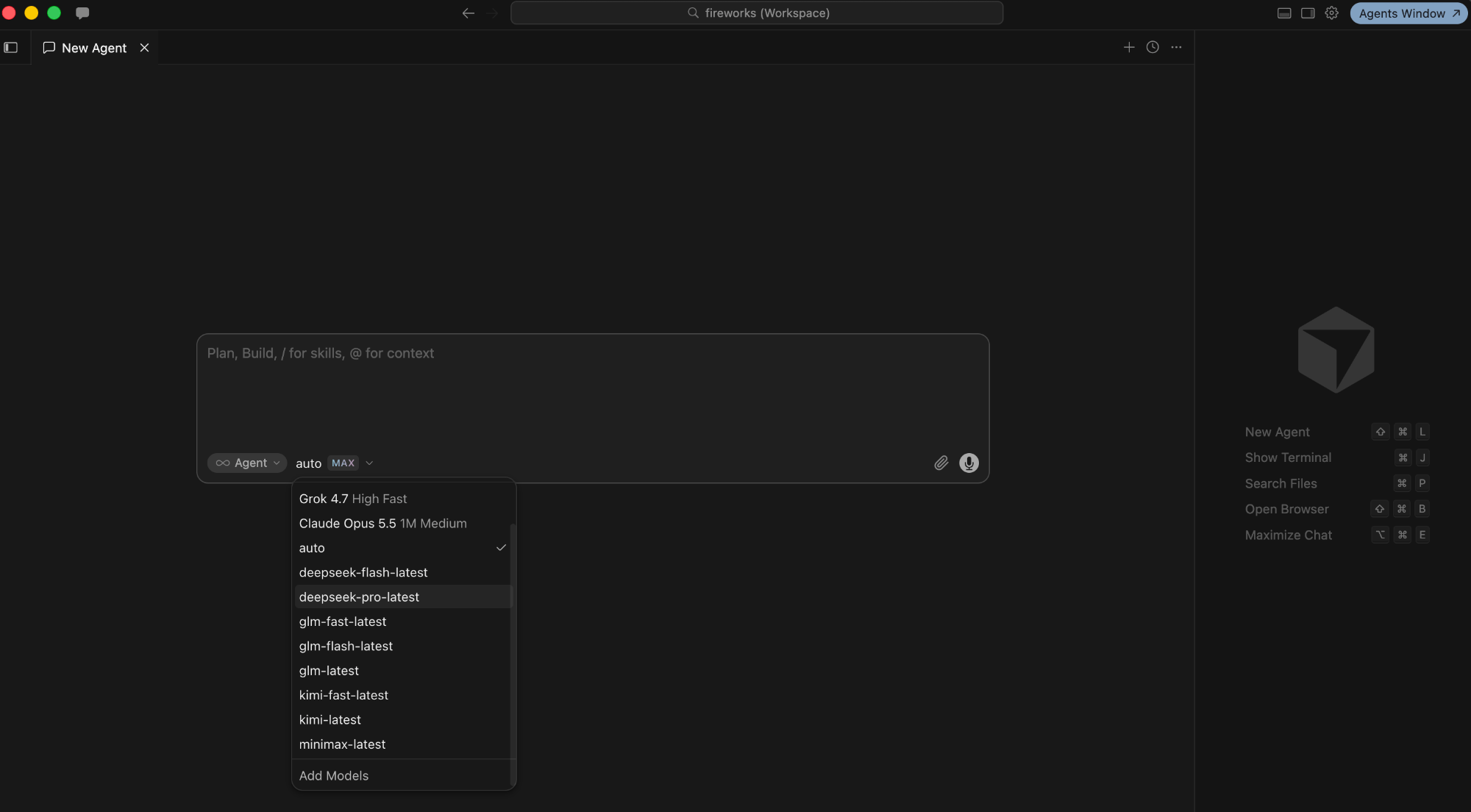 Cursor IDE stores AI settings in SQLite (`state.vscdb` under `~/.config/Cursor`, `~/Library/Application Support/Cursor`, or `%APPDATA%\Cursor`):
| Setting | Value |
| - | - |
| `cursorAuth/openAIKey` | Your Fireworks key |
| `openAIBaseUrl` | `https://api.fireworks.ai/inference/v1` |
| `aiSettings.userAddedModels` | The Fireworks catalog, tracked for a clean `off` |
| `aiSettings.modelOverrideDisabled` | Cursor's built-in models, hidden while connected |
| `aiSettings.modelConfig[]` | The Fireworks model for each mode |
Your previous auth state is saved under `~/.fireconnect/cursor/`. Use `--db-path` for a non-default `state.vscdb`.
In Cursor IDE, open **Settings**, then **Models**.
Under **API Keys**, paste your Fireworks key into **OpenAI API Key**. Turn on **Override OpenAI Base URL** and enter `https://api.fireworks.ai/inference/v1`.
Add a custom model with a Fireworks ID, such as `glm-latest`, then select it in chat.
**While connected, only Fireworks models work.** Cursor IDE's built-in models are hidden until you run `off`. Cursor IDE also enforces a server-side allowlist, so not every Fireworks model is selectable. Some features may still use Cursor's own backend, depending on plan and version.
## VS Code
OpenAI Chat Completions FireRouter
FireConnect adds a **Fireworks** provider to GitHub Copilot Chat's custom endpoints. This requires Copilot **Pro or Enterprise**. **Quit VS Code before connecting or running `off`.**
```bash wrap theme={null}
fireconnect vscode
fireconnect vscode status
```
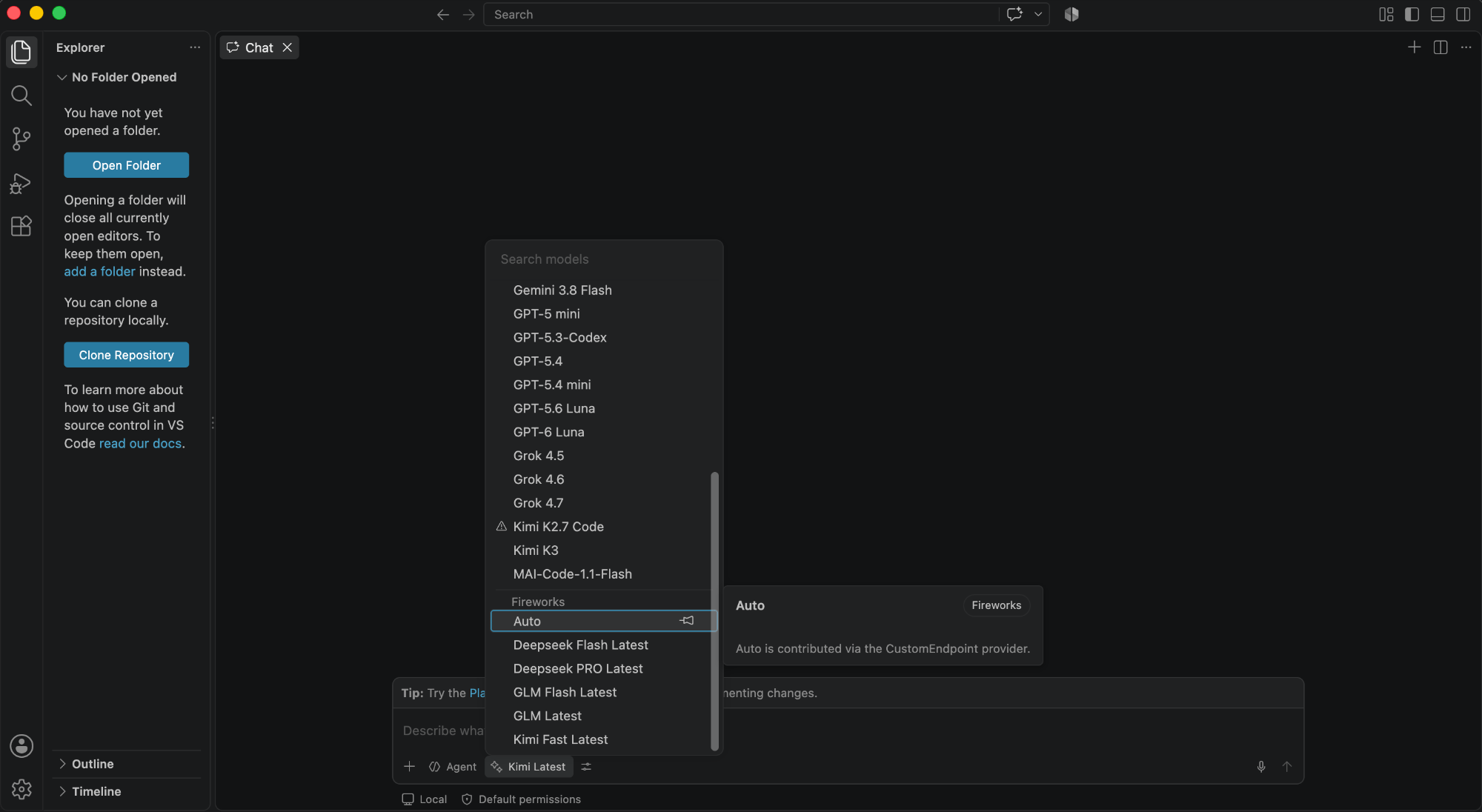
Restart VS Code, then pick a model under **Other Models → Fireworks** in Copilot Chat. `glm-latest` and `glm-fast-latest` are text-only; `glm-5p3-flash` supports images.
Cursor IDE stores AI settings in SQLite (`state.vscdb` under `~/.config/Cursor`, `~/Library/Application Support/Cursor`, or `%APPDATA%\Cursor`):
| Setting | Value |
| - | - |
| `cursorAuth/openAIKey` | Your Fireworks key |
| `openAIBaseUrl` | `https://api.fireworks.ai/inference/v1` |
| `aiSettings.userAddedModels` | The Fireworks catalog, tracked for a clean `off` |
| `aiSettings.modelOverrideDisabled` | Cursor's built-in models, hidden while connected |
| `aiSettings.modelConfig[]` | The Fireworks model for each mode |
Your previous auth state is saved under `~/.fireconnect/cursor/`. Use `--db-path` for a non-default `state.vscdb`.
In Cursor IDE, open **Settings**, then **Models**.
Under **API Keys**, paste your Fireworks key into **OpenAI API Key**. Turn on **Override OpenAI Base URL** and enter `https://api.fireworks.ai/inference/v1`.
Add a custom model with a Fireworks ID, such as `glm-latest`, then select it in chat.
**While connected, only Fireworks models work.** Cursor IDE's built-in models are hidden until you run `off`. Cursor IDE also enforces a server-side allowlist, so not every Fireworks model is selectable. Some features may still use Cursor's own backend, depending on plan and version.
## VS Code
OpenAI Chat Completions FireRouter
FireConnect adds a **Fireworks** provider to GitHub Copilot Chat's custom endpoints. This requires Copilot **Pro or Enterprise**. **Quit VS Code before connecting or running `off`.**
```bash wrap theme={null}
fireconnect vscode
fireconnect vscode status
```
Restart VS Code, then pick a model under **Other Models → Fireworks** in Copilot Chat. `glm-latest` and `glm-fast-latest` are text-only; `glm-5p3-flash` supports images.
 ```json chatLanguageModels.json theme={null}
[
{
"name": "Fireworks",
"vendor": "customendpoint",
"apiType": "chat-completions",
"apiKey": "${input:chat.lm.secret.fw-...}",
"models": [
{
"id": "auto",
"name": "Auto",
"url": "https://api.fireworks.ai/inference",
"maxInputTokens": 1048575,
"maxOutputTokens": 131072,
"vision": true,
"toolCalling": true
}
]
}
]
```
The key is stored separately in `state.vscdb`, encrypted with Electron `safeStorage`. On Linux, encryption needs `libsecret`; without it, VS Code only obfuscates the key and FireConnect warns you.
| Platform | `chatLanguageModels.json` | `state.vscdb` |
| - | - | - |
| Linux | `~/.config/Code/User/` | `~/.config/Code/User/globalStorage/` |
| macOS | `~/Library/Application Support/Code/User/` | `~/Library/Application Support/Code/User/globalStorage/` |
| Windows | `%APPDATA%\Code\User\` | `%APPDATA%\Code\User\globalStorage\` |
In Copilot Chat, open **Language Models**, click **+ Add Models...**, and choose **Custom Endpoint**. Use `https://api.fireworks.ai/inference/v1`, your Fireworks key, and a model ID such as `glm-latest`.
Follow the step-by-step screenshots in [GitHub Copilot](/docs/ecosystem/integrations/github-copilot).
## Copilot App
OpenAI Chat Completions FireRouter with Provider Keys
The GitHub Copilot **desktop app** keeps its built-in models and adds Fireworks alongside them. **Quit the app before connecting or running `off`.**
```bash wrap theme={null}
fireconnect copilot-app
fireconnect copilot-app status
```
Reopen the app and pick a Fireworks model in **Settings → Model providers**.
FireConnect writes to `~/.copilot/data.db` (SQLite, movable with `COPILOT_HOME`):
| Table | What FireConnect adds |
| - | - |
| `model_providers` | One `Fireworks` provider of type `openai`, with base URL `https://api.fireworks.ai/inference/v1` and your key as an `Authorization: Bearer` header |
| `provider_models` | One row per model, with token limits and reasoning efforts (`low`, `medium`, `high`, `max`) |
`off` deletes the provider and its models. Use `--db-path` for a non-default database.
In **Settings → Model providers**, add a provider with the values FireConnect uses:
| Field | Value |
| - | - |
| Base URL | `https://api.fireworks.ai/inference/v1` |
| API key | Your Fireworks key |
| Models | Fireworks IDs, such as `glm-latest` or `kimi-latest` |
The app's bring-your-own-key path does not support image input, the hover-card Context row, or AI-credits pricing. FireConnect can add any FireRouter ID, but the app cannot send a local Anthropic or OpenAI key. Without a matching [Provider Key](/docs/nexus/provider-keys), FireRouter serves those routes with open models. See [Harness Compatibility](/docs/nexus/harness-compatibility).
## Copilot CLI
OpenAI Chat Completions FireRouter with manual setup
The `copilot` command (`@github/copilot`) reads plain JSON under `~/.copilot`, separate from the desktop app.
```bash wrap theme={null}
fireconnect copilot-cli
fireconnect copilot-cli status
```
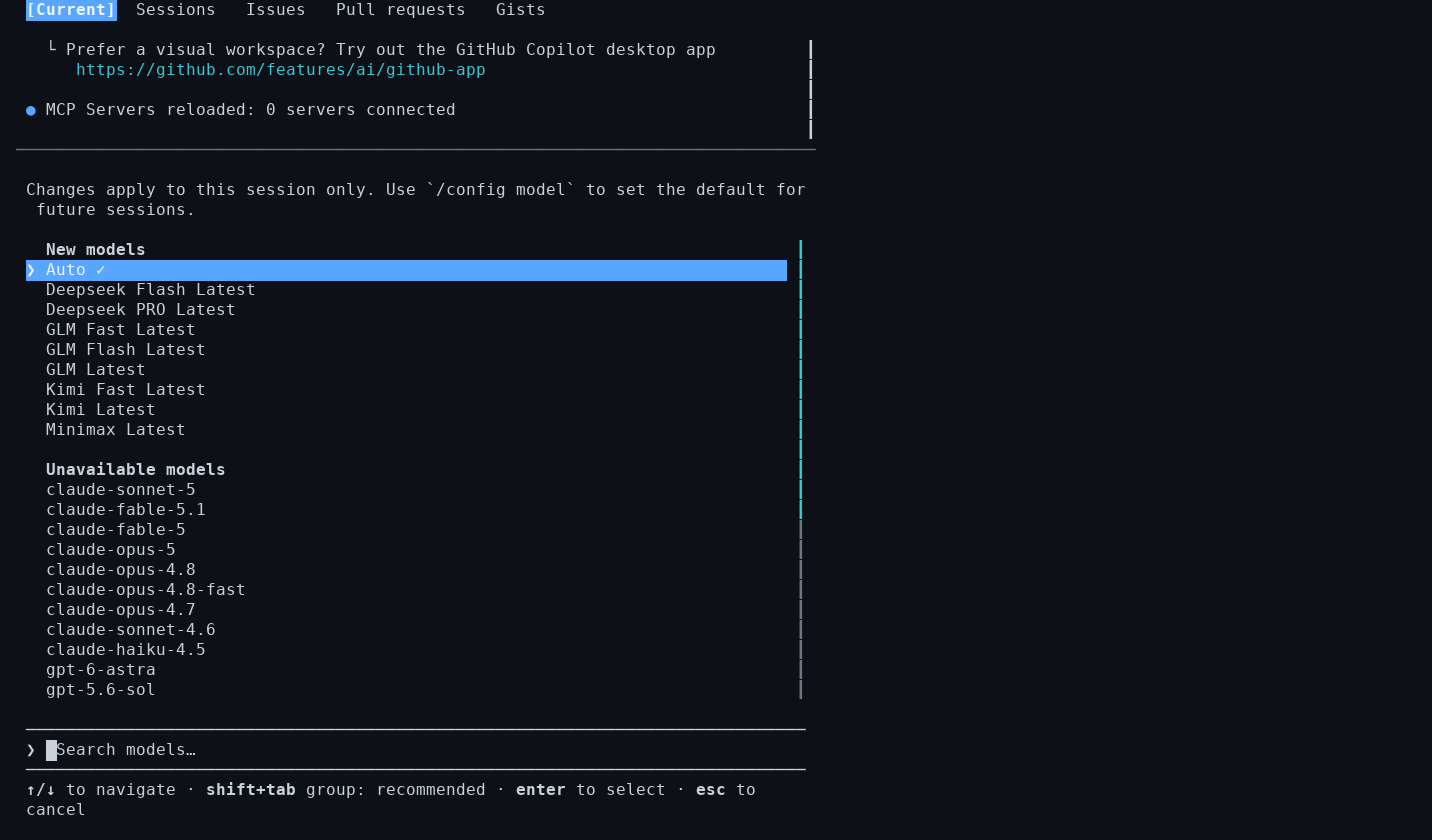
Start a new `copilot` session. Switch models with `copilot --model fireworks/` or `/model`.
```json chatLanguageModels.json theme={null}
[
{
"name": "Fireworks",
"vendor": "customendpoint",
"apiType": "chat-completions",
"apiKey": "${input:chat.lm.secret.fw-...}",
"models": [
{
"id": "auto",
"name": "Auto",
"url": "https://api.fireworks.ai/inference",
"maxInputTokens": 1048575,
"maxOutputTokens": 131072,
"vision": true,
"toolCalling": true
}
]
}
]
```
The key is stored separately in `state.vscdb`, encrypted with Electron `safeStorage`. On Linux, encryption needs `libsecret`; without it, VS Code only obfuscates the key and FireConnect warns you.
| Platform | `chatLanguageModels.json` | `state.vscdb` |
| - | - | - |
| Linux | `~/.config/Code/User/` | `~/.config/Code/User/globalStorage/` |
| macOS | `~/Library/Application Support/Code/User/` | `~/Library/Application Support/Code/User/globalStorage/` |
| Windows | `%APPDATA%\Code\User\` | `%APPDATA%\Code\User\globalStorage\` |
In Copilot Chat, open **Language Models**, click **+ Add Models...**, and choose **Custom Endpoint**. Use `https://api.fireworks.ai/inference/v1`, your Fireworks key, and a model ID such as `glm-latest`.
Follow the step-by-step screenshots in [GitHub Copilot](/docs/ecosystem/integrations/github-copilot).
## Copilot App
OpenAI Chat Completions FireRouter with Provider Keys
The GitHub Copilot **desktop app** keeps its built-in models and adds Fireworks alongside them. **Quit the app before connecting or running `off`.**
```bash wrap theme={null}
fireconnect copilot-app
fireconnect copilot-app status
```
Reopen the app and pick a Fireworks model in **Settings → Model providers**.
FireConnect writes to `~/.copilot/data.db` (SQLite, movable with `COPILOT_HOME`):
| Table | What FireConnect adds |
| - | - |
| `model_providers` | One `Fireworks` provider of type `openai`, with base URL `https://api.fireworks.ai/inference/v1` and your key as an `Authorization: Bearer` header |
| `provider_models` | One row per model, with token limits and reasoning efforts (`low`, `medium`, `high`, `max`) |
`off` deletes the provider and its models. Use `--db-path` for a non-default database.
In **Settings → Model providers**, add a provider with the values FireConnect uses:
| Field | Value |
| - | - |
| Base URL | `https://api.fireworks.ai/inference/v1` |
| API key | Your Fireworks key |
| Models | Fireworks IDs, such as `glm-latest` or `kimi-latest` |
The app's bring-your-own-key path does not support image input, the hover-card Context row, or AI-credits pricing. FireConnect can add any FireRouter ID, but the app cannot send a local Anthropic or OpenAI key. Without a matching [Provider Key](/docs/nexus/provider-keys), FireRouter serves those routes with open models. See [Harness Compatibility](/docs/nexus/harness-compatibility).
## Copilot CLI
OpenAI Chat Completions FireRouter with manual setup
The `copilot` command (`@github/copilot`) reads plain JSON under `~/.copilot`, separate from the desktop app.
```bash wrap theme={null}
fireconnect copilot-cli
fireconnect copilot-cli status
```
Start a new `copilot` session. Switch models with `copilot --model fireworks/` or `/model`.
 `off` restores `providers.json` from its snapshot, or deletes it if FireConnect created it. Use `--providers-path` for a non-default location.
```json ~/.copilot/providers.json theme={null}
{
"providers": [
{
"name": "fireworks",
"type": "openai",
"wireApi": "completions",
"baseUrl": "https://api.fireworks.ai/inference/v1",
"apiKey": "fw_YOUR_FIREWORKS_API_KEY"
}
],
"models": [
{
"id": "glm-latest",
"provider": "fireworks",
"wireModel": "glm-latest",
"name": "GLM (Latest)",
"maxPromptTokens": 1048576,
"maxContextWindowTokens": 1048576,
"maxOutputTokens": 131072,
"capabilities": { "supports": { "reasoningEffort": true } }
}
]
}
```
```json ~/.copilot/settings.json theme={null}
{ "model": "fireworks/glm-latest" }
```
For a FireRouter route with Claude or GPT models, add a `headers` map to the provider, such as `"headers": { "x-anthropic-api-key": "sk-ant-..." }`, and use the router ID, such as `firerouter/opus`, as the model `id` and `wireModel`. FireConnect adds these routes but does not send your provider keys, so use manual setup to send them yourself. The [harness setup](/docs/nexus/firerouter/setup#set-up-your-harness) generates the full file.
Use provider-prefixed model IDs such as `fireworks/glm-latest`. The CLI rejects a bare `glm-latest` and silently falls back to its configured model.
## DeepSeek Harness
OpenAI Chat Completions FireRouter with manual setup
DeepSeek's coding agent (`dsh`) runs named profiles, such as `tui`, `web`, and `headless`, under `$DSH_HOME`, which defaults to `~/.dsh`. Restart `dsh` after changing a profile.
```bash wrap theme={null}
fireconnect deepseek
fireconnect deepseek status
```
Restart `dsh`. It starts on `auto` and goes straight to Fireworks, with no DeepSeek key prompt.
FireConnect adds a `fireworks` provider to `~/.dsh/settings.yaml` and to each existing profile's `cordis.patch.yml`, which `dsh` 0.1.7 and later read. `off` restores both from the snapshot under `~/.fireconnect/deepseek/`.
Connected before FireConnect 0.9.8? Run `fireconnect deepseek` once so `dsh` 0.1.7 and later stop asking for a DeepSeek key.
FireConnect can add any FireRouter ID, but it does not send provider keys from `dsh`. To use Claude or GPT models in a route, connect a [Provider Key](/docs/nexus/provider-keys) or use manual setup.
Create the profile folder once, then add a patch to it. Repeat for each profile you use.
```bash wrap theme={null}
dsh --profile tui --dump-config > /dev/null
```
```yaml ~/.dsh/profiles/tui/cordis.patch.yml theme={null}
- id: llm-pi-ai
config:
providers:
fireworks:
displayName: Fireworks
apiKeyEnv: FIREWORKS_API_KEY
api: openai-completions
baseURL: https://api.fireworks.ai/inference/v1
models:
- id: glm-latest
name: GLM (Latest)
reasoning: true
contextWindow: 1048576
maxTokens: 131072
- id: agent-default-model
config:
provider: fireworks
model: glm-latest
```
```bash wrap theme={null}
export FIREWORKS_API_KEY="fw_..."
dsh tui
```
For a FireRouter route with Claude or GPT models, add `headers` to the provider, such as `x-anthropic-api-key: sk-ant-...`, and use the router ID as the model. The [harness setup](/docs/nexus/firerouter/setup#set-up-your-harness) generates the full patch.
This documentation is built and hosted on [Mintlify](https://mintlify.com), a developer documentation platform.
`off` restores `providers.json` from its snapshot, or deletes it if FireConnect created it. Use `--providers-path` for a non-default location.
```json ~/.copilot/providers.json theme={null}
{
"providers": [
{
"name": "fireworks",
"type": "openai",
"wireApi": "completions",
"baseUrl": "https://api.fireworks.ai/inference/v1",
"apiKey": "fw_YOUR_FIREWORKS_API_KEY"
}
],
"models": [
{
"id": "glm-latest",
"provider": "fireworks",
"wireModel": "glm-latest",
"name": "GLM (Latest)",
"maxPromptTokens": 1048576,
"maxContextWindowTokens": 1048576,
"maxOutputTokens": 131072,
"capabilities": { "supports": { "reasoningEffort": true } }
}
]
}
```
```json ~/.copilot/settings.json theme={null}
{ "model": "fireworks/glm-latest" }
```
For a FireRouter route with Claude or GPT models, add a `headers` map to the provider, such as `"headers": { "x-anthropic-api-key": "sk-ant-..." }`, and use the router ID, such as `firerouter/opus`, as the model `id` and `wireModel`. FireConnect adds these routes but does not send your provider keys, so use manual setup to send them yourself. The [harness setup](/docs/nexus/firerouter/setup#set-up-your-harness) generates the full file.
Use provider-prefixed model IDs such as `fireworks/glm-latest`. The CLI rejects a bare `glm-latest` and silently falls back to its configured model.
## DeepSeek Harness
OpenAI Chat Completions FireRouter with manual setup
DeepSeek's coding agent (`dsh`) runs named profiles, such as `tui`, `web`, and `headless`, under `$DSH_HOME`, which defaults to `~/.dsh`. Restart `dsh` after changing a profile.
```bash wrap theme={null}
fireconnect deepseek
fireconnect deepseek status
```
Restart `dsh`. It starts on `auto` and goes straight to Fireworks, with no DeepSeek key prompt.
FireConnect adds a `fireworks` provider to `~/.dsh/settings.yaml` and to each existing profile's `cordis.patch.yml`, which `dsh` 0.1.7 and later read. `off` restores both from the snapshot under `~/.fireconnect/deepseek/`.
Connected before FireConnect 0.9.8? Run `fireconnect deepseek` once so `dsh` 0.1.7 and later stop asking for a DeepSeek key.
FireConnect can add any FireRouter ID, but it does not send provider keys from `dsh`. To use Claude or GPT models in a route, connect a [Provider Key](/docs/nexus/provider-keys) or use manual setup.
Create the profile folder once, then add a patch to it. Repeat for each profile you use.
```bash wrap theme={null}
dsh --profile tui --dump-config > /dev/null
```
```yaml ~/.dsh/profiles/tui/cordis.patch.yml theme={null}
- id: llm-pi-ai
config:
providers:
fireworks:
displayName: Fireworks
apiKeyEnv: FIREWORKS_API_KEY
api: openai-completions
baseURL: https://api.fireworks.ai/inference/v1
models:
- id: glm-latest
name: GLM (Latest)
reasoning: true
contextWindow: 1048576
maxTokens: 131072
- id: agent-default-model
config:
provider: fireworks
model: glm-latest
```
```bash wrap theme={null}
export FIREWORKS_API_KEY="fw_..."
dsh tui
```
For a FireRouter route with Claude or GPT models, add `headers` to the provider, such as `x-anthropic-api-key: sk-ant-...`, and use the router ID as the model. The [harness setup](/docs/nexus/firerouter/setup#set-up-your-harness) generates the full patch.
This documentation is built and hosted on [Mintlify](https://mintlify.com), a developer documentation platform.