
Supported models
Where each column is used:
- Model: the name shown in the dashboard model picker. You select it; you never type an ID.
- Served model ID: the ID in the response
modelfield, such asclaude-opus-5-5. Your application still sends a router slug such asfirerouter/claude-opus-5-5.firectluses the served ID asroutes[].firerouter_model_id. You do not type it in the dashboard. - Bedrock model ID: the AWS identifier. Copy it exactly from AWS. Paste it into each route’s Model ID field, or set
routes[].bedrock.model_id. Any geo/global profile or ARN that AWS lists for the model also works, as long as your region can invoke it. - Region: the AWS source region. In Fireworks, select it in each route’s Region field, or set
routes[].bedrock.aws_region. The supported regions areus-east-1,us-east-2,us-west-1, andus-west-2.
Prepare AWS
In the AWS account that will pay for inference, request or verify access to each model.- For Anthropic models, complete the one-time use-case form and Marketplace agreement if AWS requires them.
- For restricted models, complete any additional AWS or provider approval.
- Confirm that the account can invoke the selected model or inference profile.
- IAM role
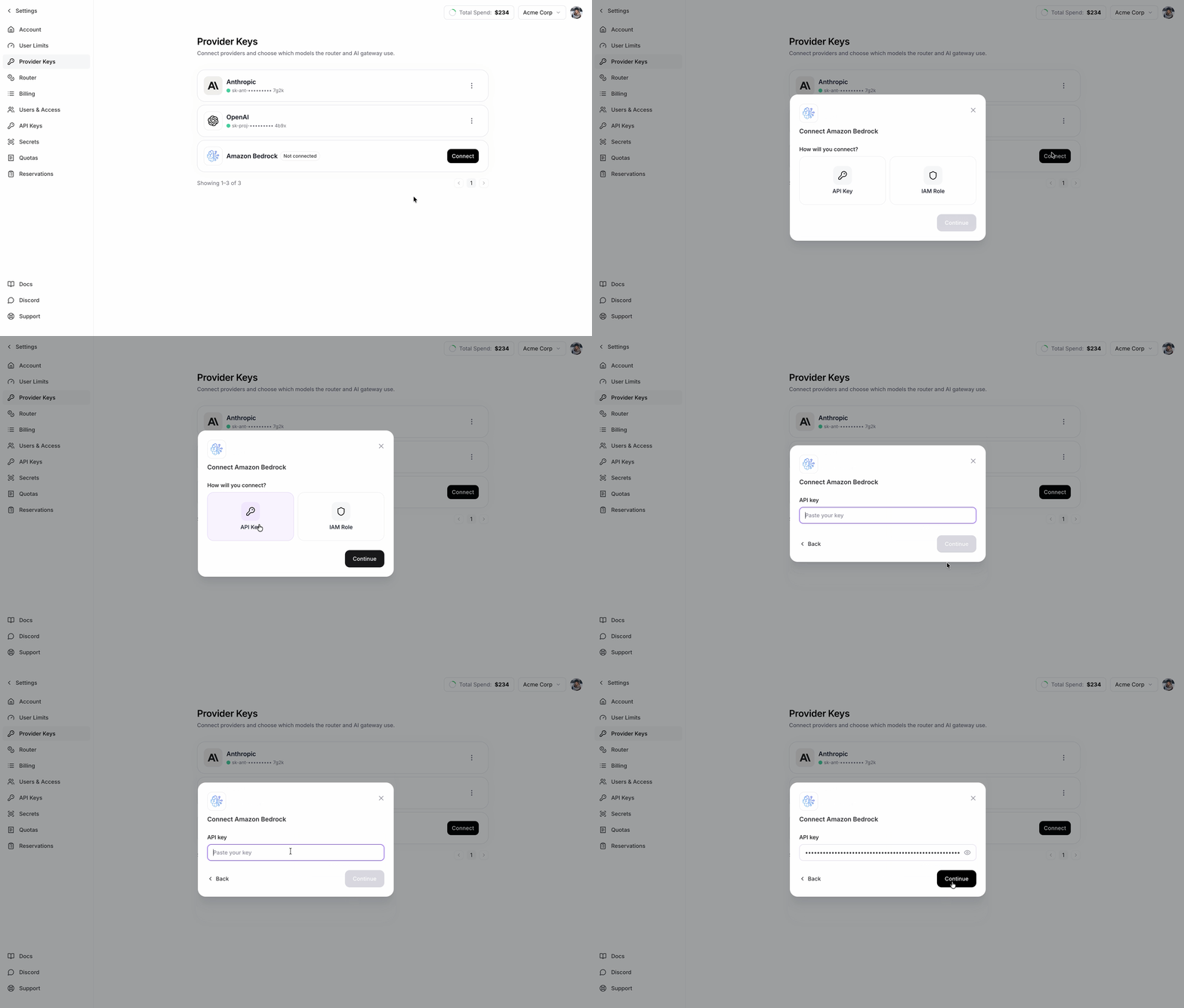
- API key
Set
sts:ExternalId to your exact Fireworks account ID.1
Configure the trust policy
In AWS IAM → Roles → Create role, choose Custom trust policy and paste: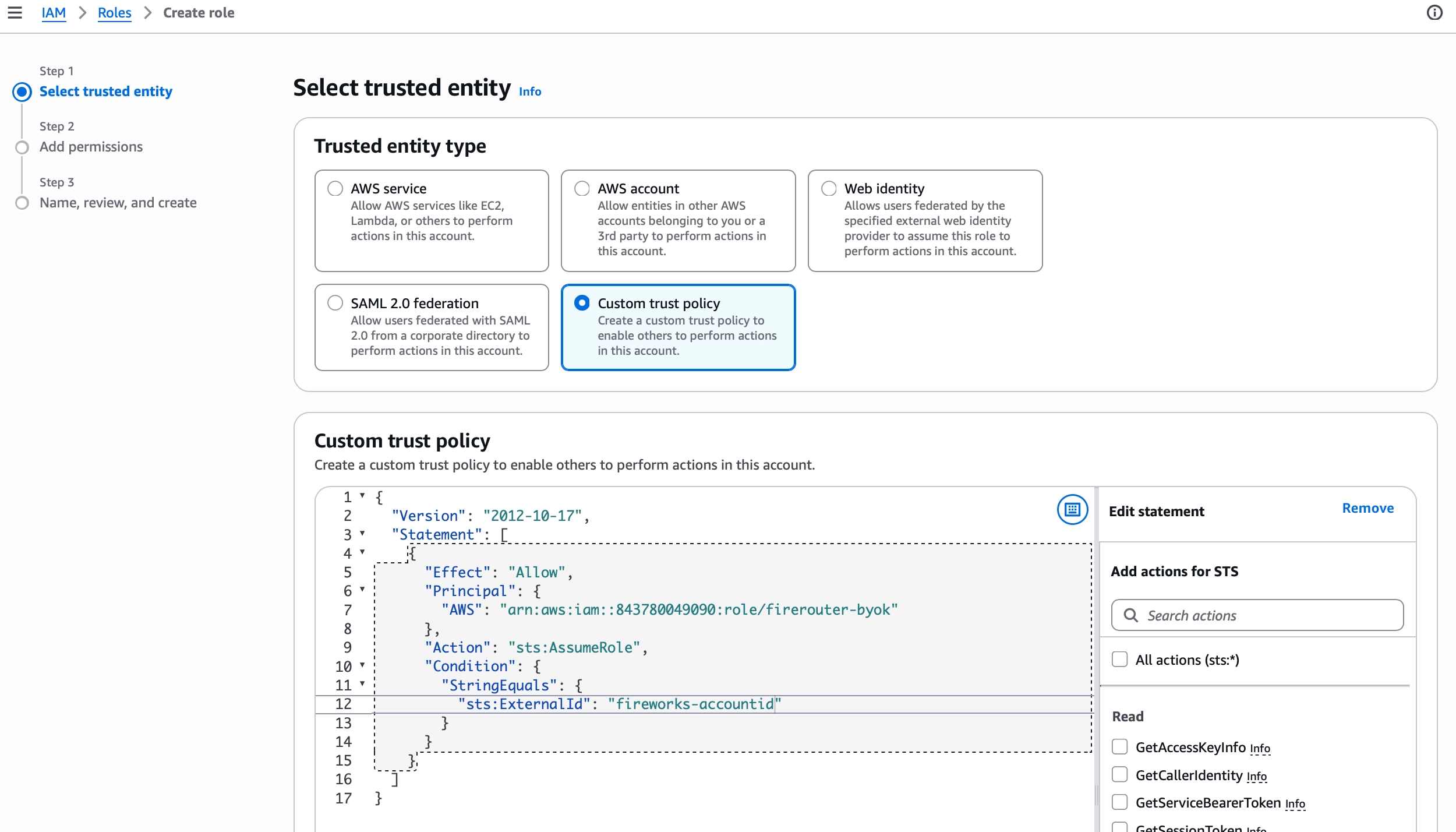
2
Add Bedrock permissions
In Step 2: Add permissions, select Create inline policy and paste: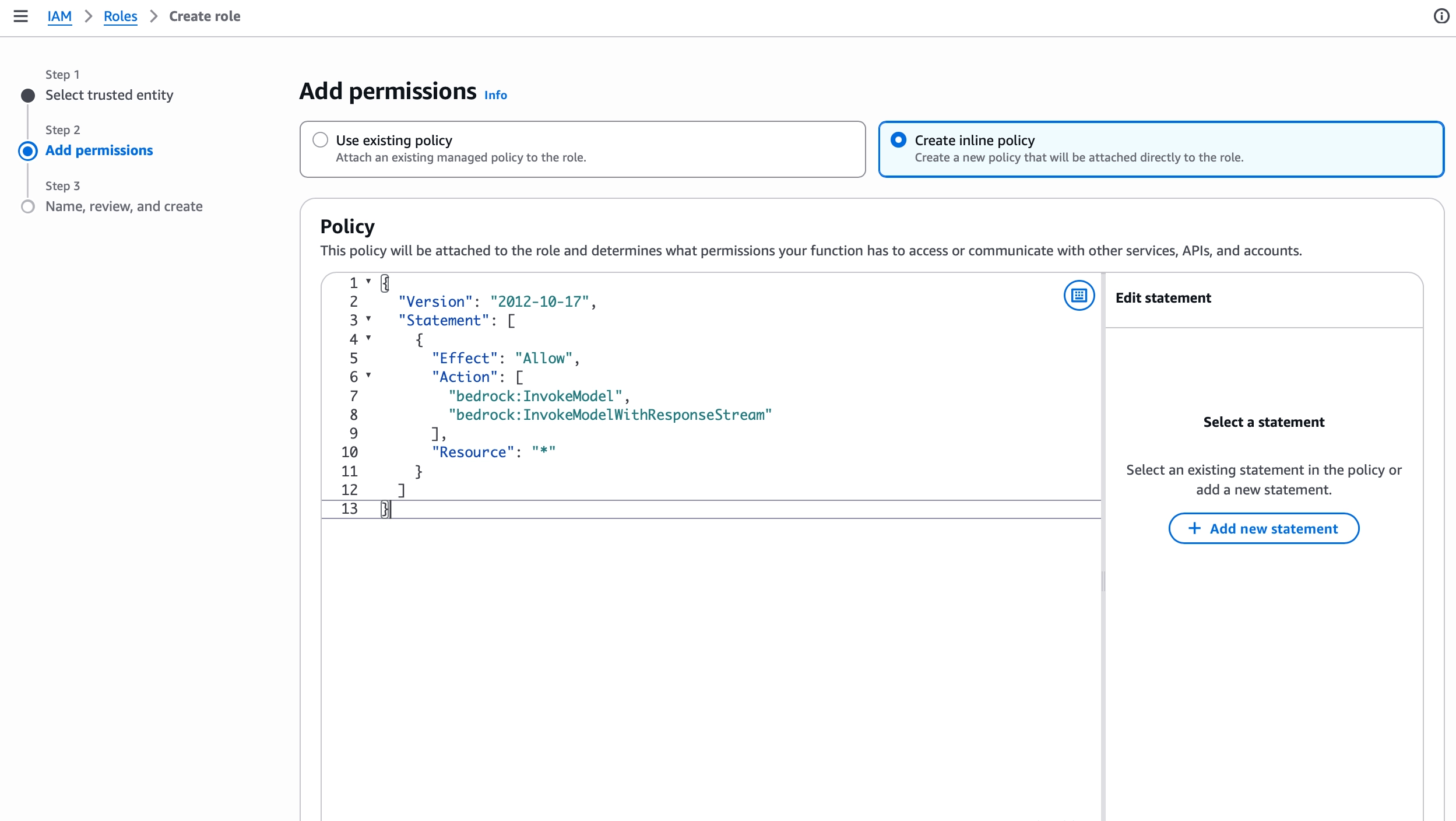
Resource: "*" covers all Bedrock inference targets and the default project. SCPs, permission boundaries, and explicit denies still apply.3
Create the role
In Step 3, name the role 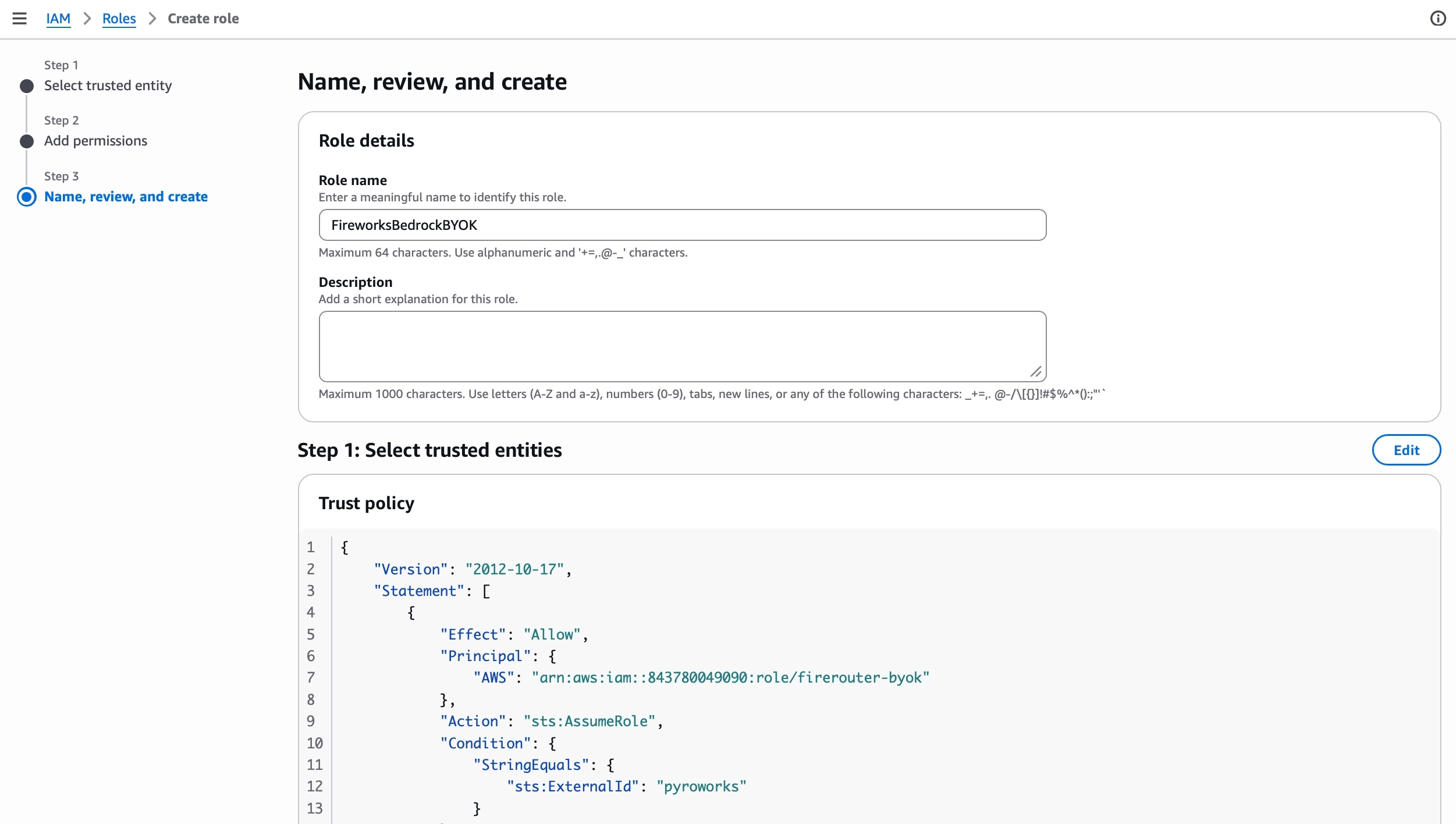
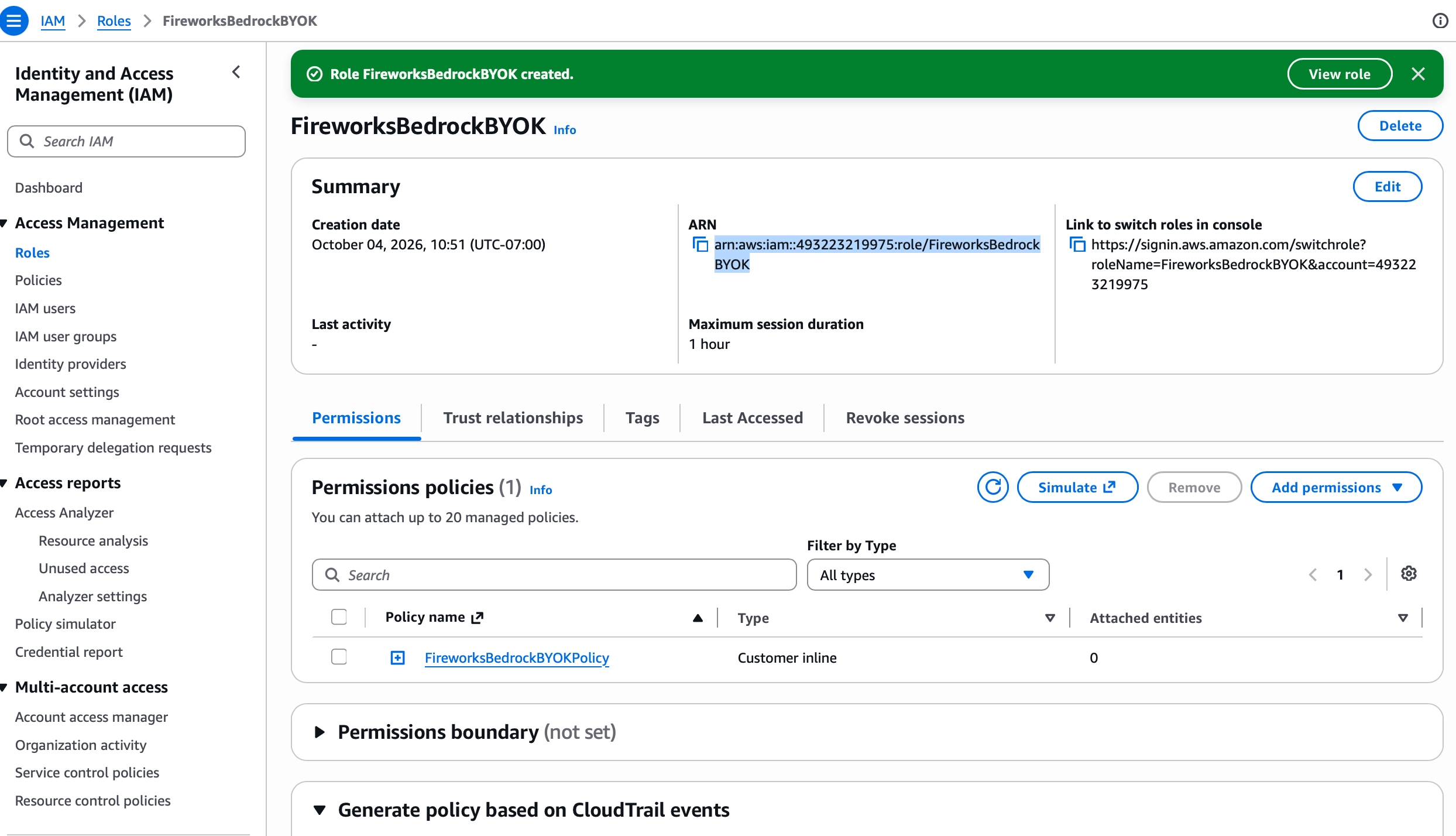
FireworksBedrockBYOK or use another name that begins with FireworksBedrock. Use the default IAM path; custom role paths are not supported. Review the trust policy and permissions, then create the role.Create the role with AWS CLI
Create the role with AWS CLI
Set the External ID to your exact Fireworks account ID:Create the role and trust policy:Add the Bedrock permission policy:
Connect in the dashboard
- IAM role
- API key
1
Connect the key
Open Settings → Provider Keys. On the Amazon Bedrock row, click Connect.Select IAM Role. Keep the External ID exactly as shown, then complete the AWS steps. Paste the IAM role ARN, not the permission policy ARN, and click Continue.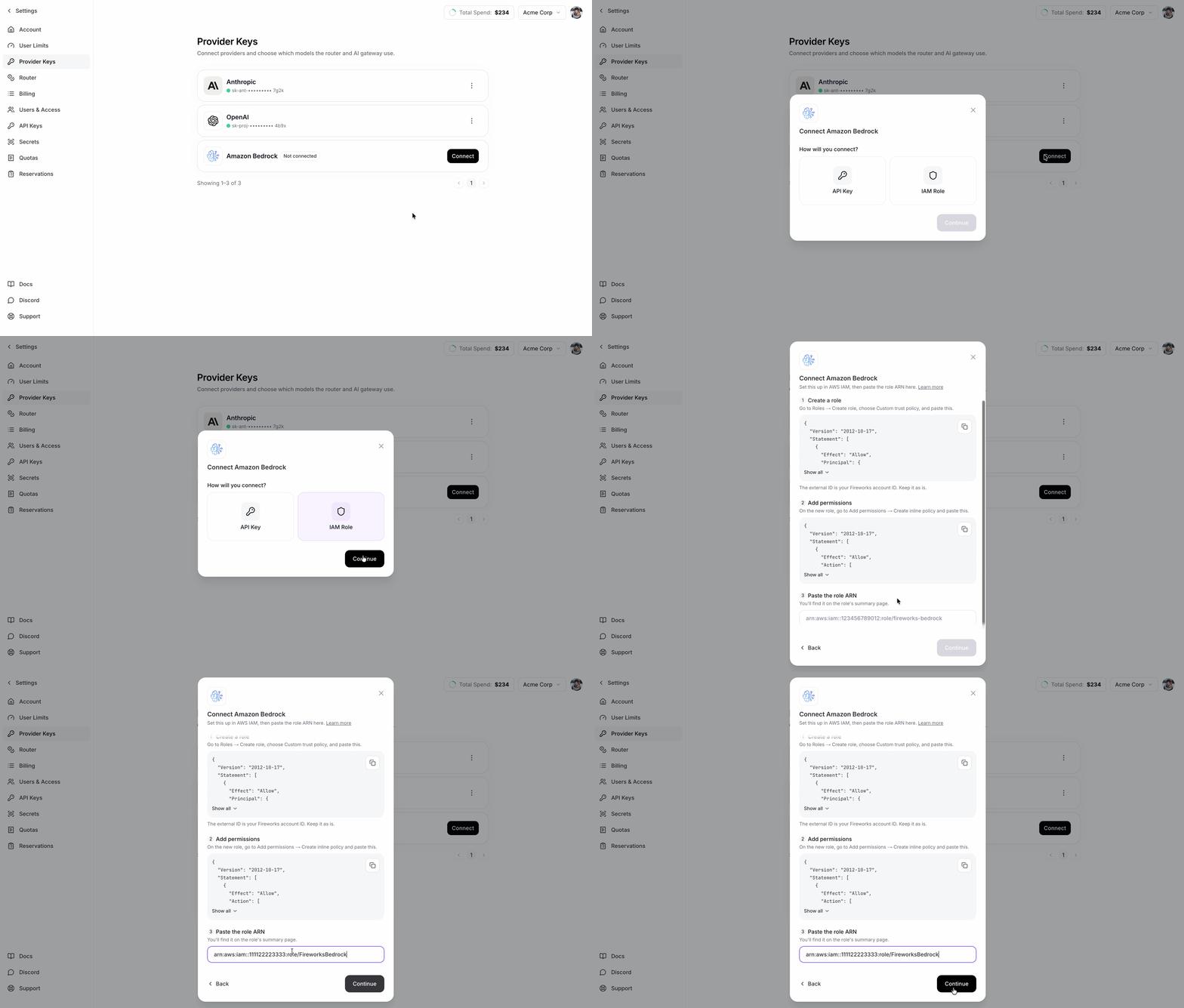
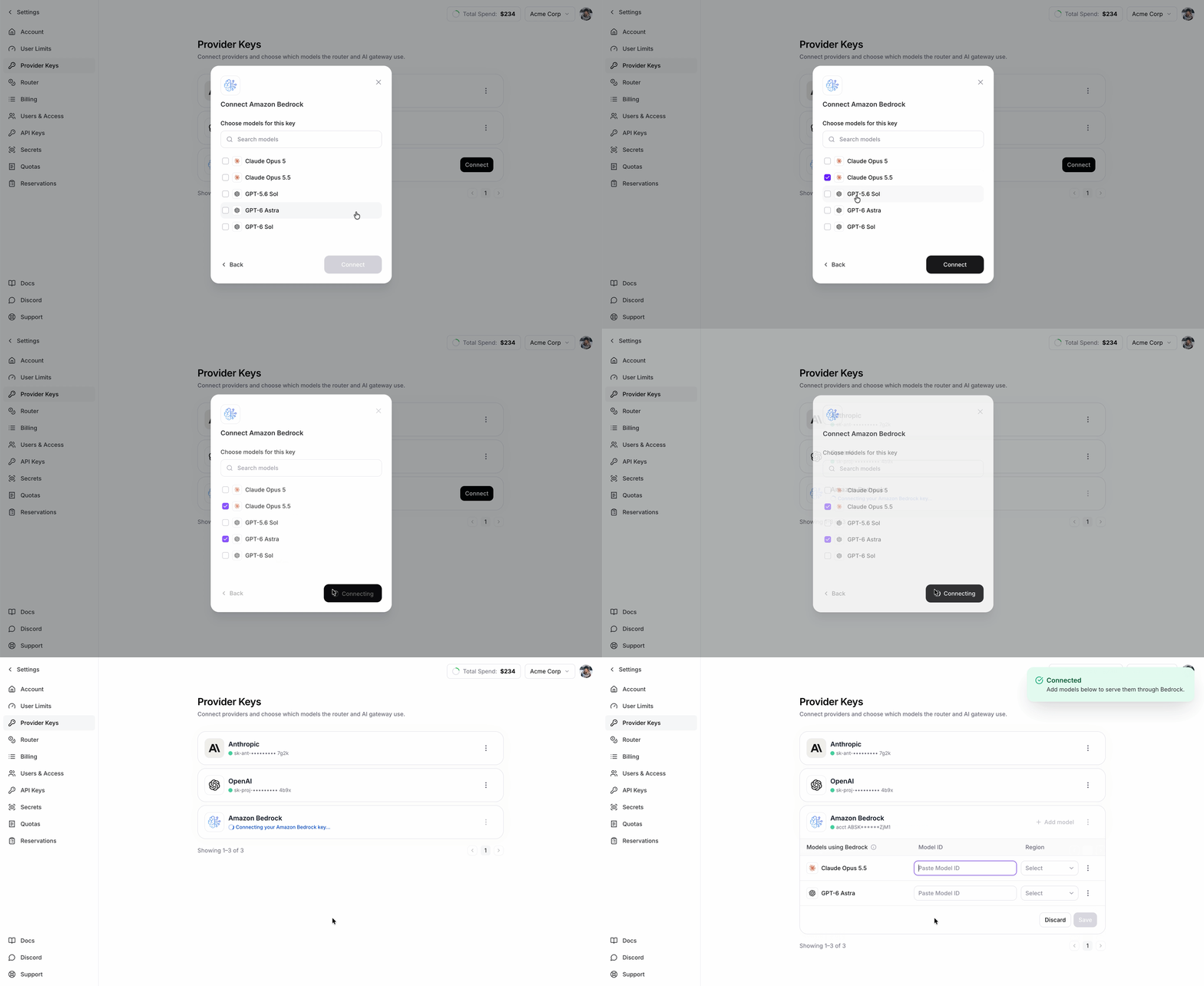
2
Fill in the model routes
Connecting stores the credential but does not route any traffic yet. Once the card is connected, the models you picked appear as empty rows that you must complete.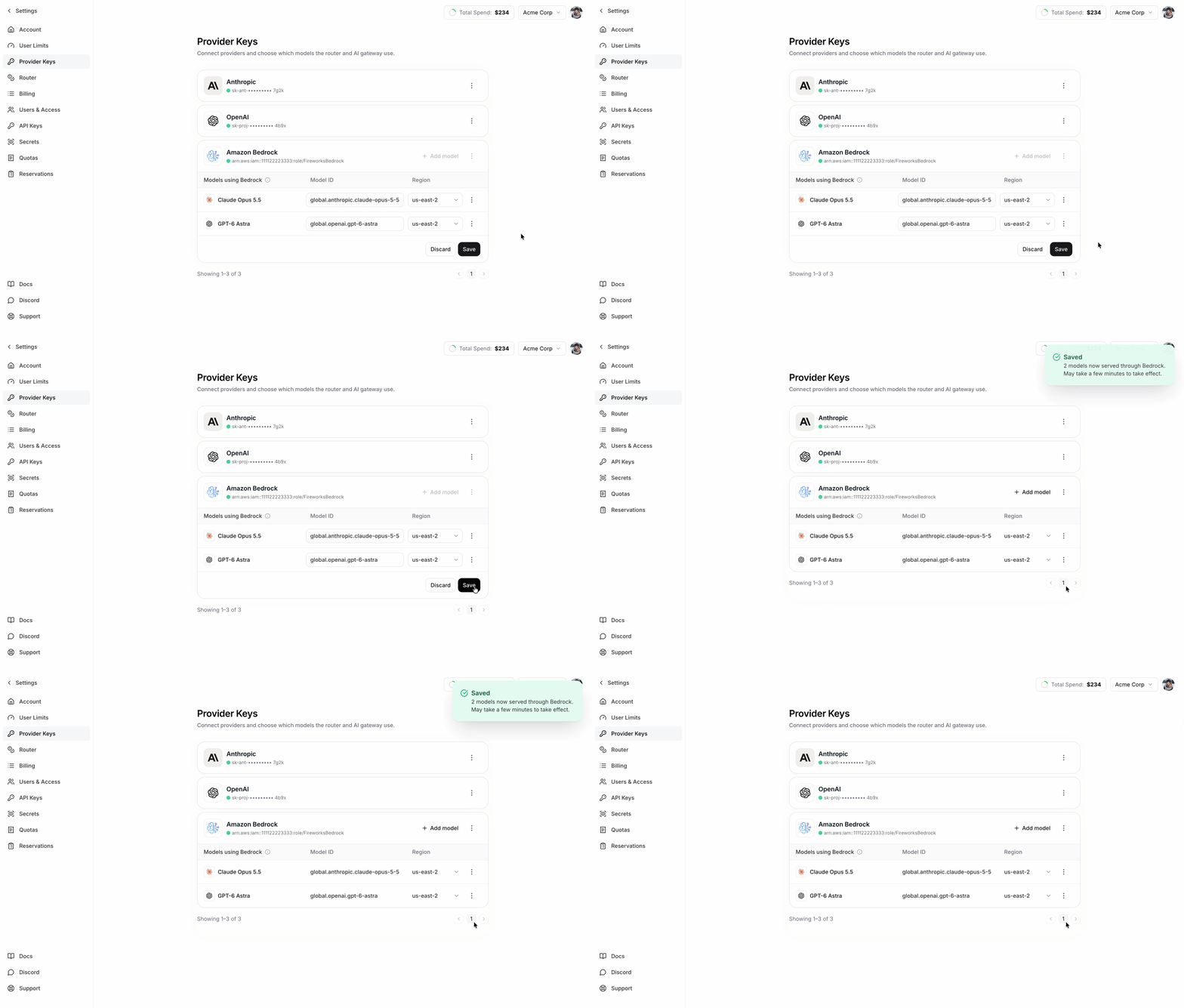
- For each row under Models using Bedrock, paste the AWS Model ID and select a Region.
- Click Save. Save stays disabled until every row has both values.
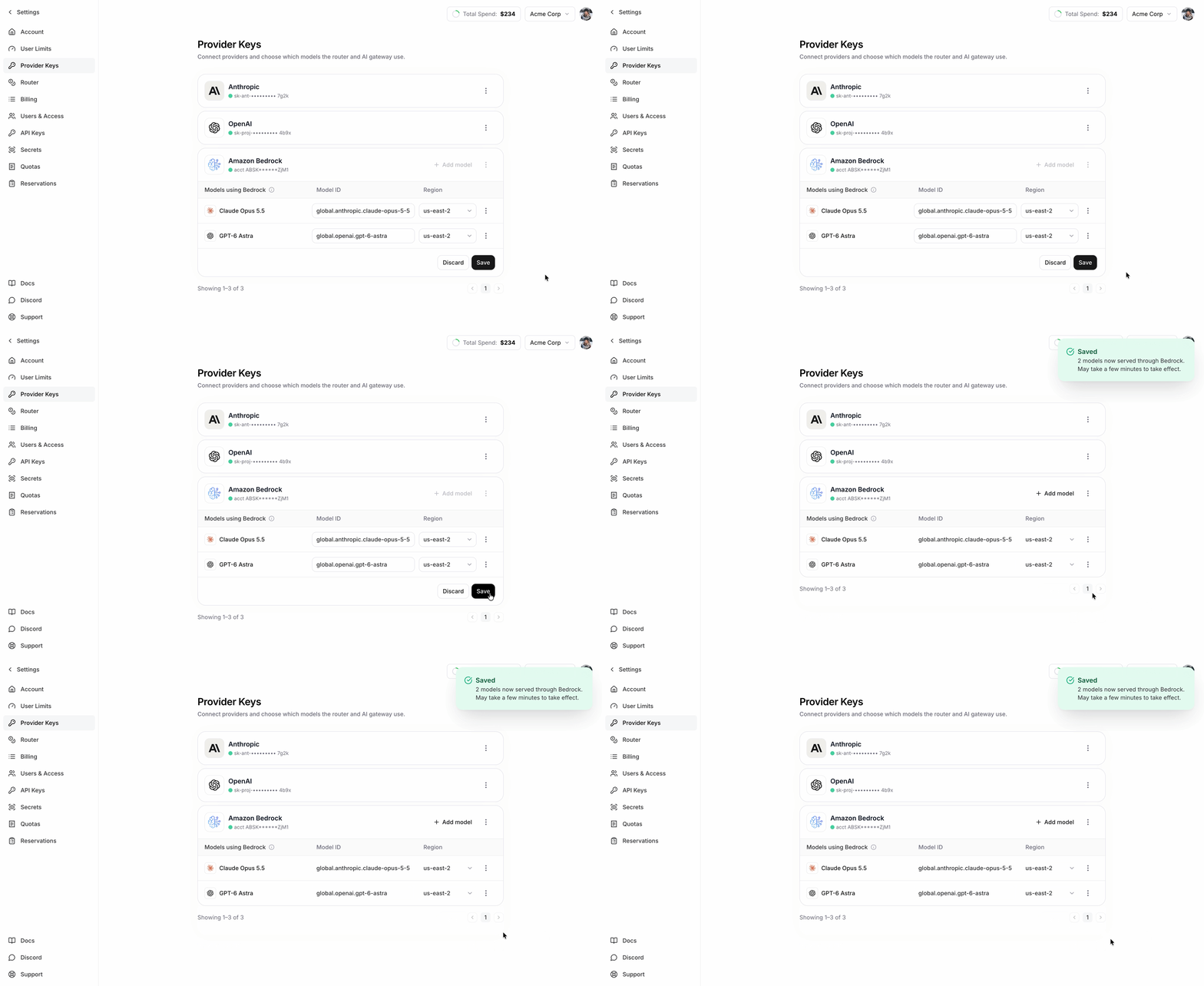
Change model routes later
Use Add model or the trash icon on a row to add or remove models. Use Edit models to change the Model ID or Region of existing rows. Then click Save. Use Update Key to replace the API key or IAM role ARN without changing the routes. This is the Replace action described in Provider Keys. Use Remove to delete the Bedrock credential and all of its routes.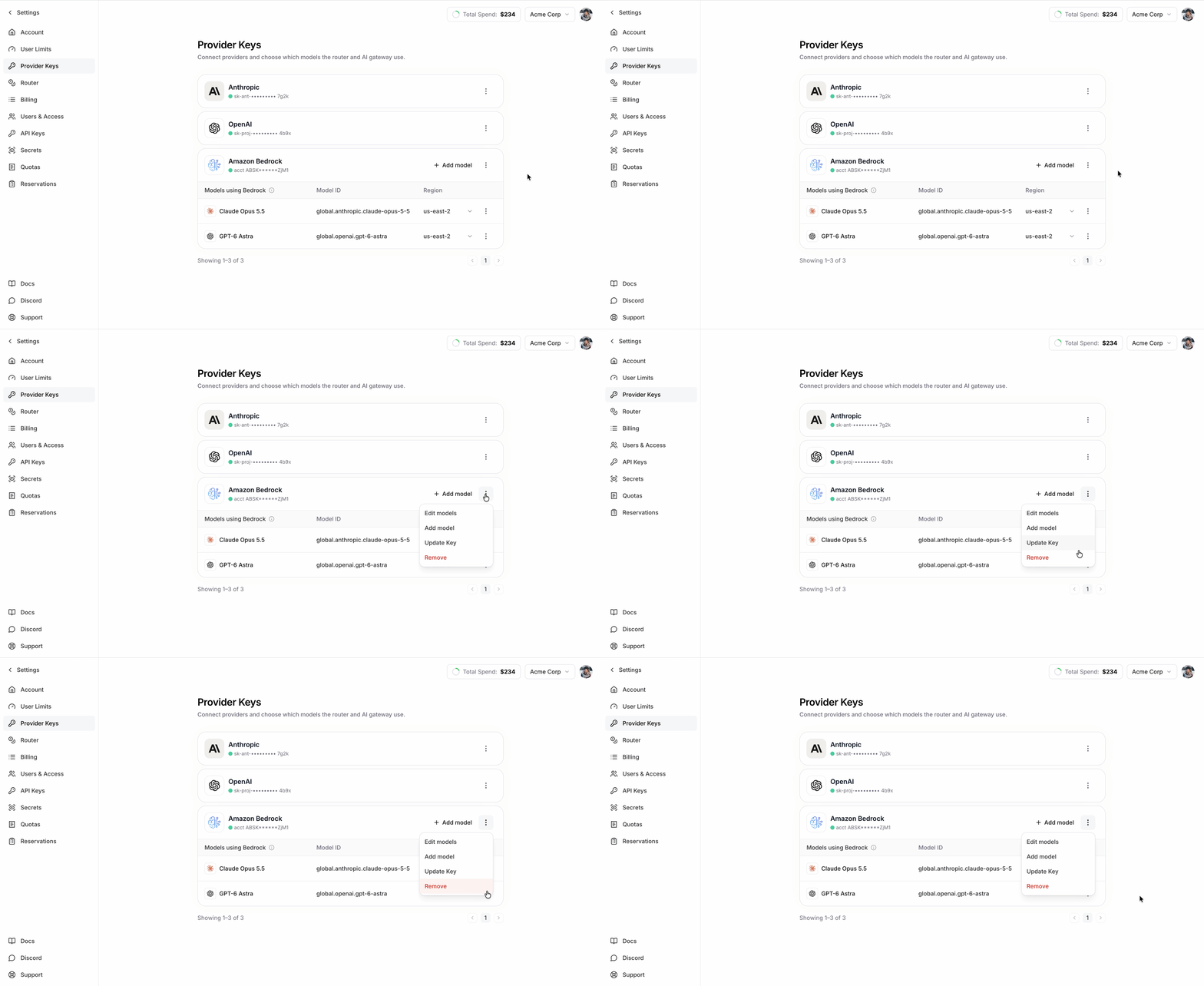
Manage with firectl
Upload the key
- IAM role
- API key
KEY_HINT for list output and key_hint for JSON. A role ARN is an identifier, not a secret.KEY_ID. upload only stores the credential; it does not route traffic.
Write the routes file
Createroutes.json. Each entry maps one FireRouter model to one Bedrock region and model ID. The file holds only model and region values, not the key.
- Use only the served model IDs in Supported models.
- Each model appears once and maps to one
(aws_region, model_id)target. - Copy
model_idexactly from AWS; geo/global prefixes and ARNs are significant.
Bind the key and routes
- Always pass the complete route file. Every bind replaces the whole route set; omitted routes are deleted.
- Confirm removed routes. If a bind removes routes,
firectlasks for confirmation. Pass--yesto skip the prompt.
CONNECTED with empty routes serves no Bedrock traffic. Before the first bind, get returns NOT_FOUND.
Troubleshooting
- AssumeRole is denied (IAM role): check that the trust policy uses the exact Fireworks principal ARN and your Fireworks account ID as
sts:ExternalId. The role name must start withFireworksBedrockand use the default IAM path. IAM changes can take a few seconds to apply. - InvokeModel is denied: check the role permission policy, SCPs, permission boundaries, model access, and Marketplace or provider approval in the same AWS account.
- API key is unauthorized or expired: generate a replacement, then upload and bind it. Expiring or revoking a key in AWS does not change the Fireworks state.
- Model not found: copy the exact model or profile ID from AWS. Never derive it from the served model ID.
- Region unavailable: confirm the region can invoke that exact inference profile.
- “This ARN isn’t in the right format.” (dashboard): paste the full IAM role ARN from the role summary page. A permission policy ARN or a role name alone won’t work.
- “Test failed” on a model row (dashboard): see “Model not found” and “Region unavailable” above. If every model fails, see “AssumeRole is denied.”
- Save button stays disabled (dashboard): a row is missing its Model ID or Region.
- A route disappeared (
firectl): every bind replaces the whole route set. Include all routes you want to keep. - Connected but traffic does not reach Bedrock: confirm the route list is not empty and that requests use a route containing one of the configured served model IDs.